
Delta Force Campaign Not Working on PC: My Comprehensive Troubleshooting Guide
Delta Force Black Hawk Down campaign not working? Discover expert fixes for Steam crashes and black screen issues in this essential 2026 guide.
Hey fellow gamers, I know how frustrating it can be when you're all geared up to dive into the intense 1993 Civil War in Somalia through the Delta Force campaign, only to be met with a black screen or a crash. I've been there, staring at my monitor in disbelief. Since the game's release, this notorious issue has plagued many PC players, preventing them from experiencing the Black Hawk Down campaign that many of us were so excited about. Even now, in 2026, while the core gameplay remains fantastic, these technical hiccups can still pop up. The developers at TiMi Studio Group haven't always been quick with official fixes, but don't worry—over my years of gaming, I've compiled a solid list of potential solutions that have worked for me and many others.
Let's talk about why this might be happening. Honestly, the reasons can be as varied as the missions in the game itself. Sometimes, it's the Steam client acting up—a background process might be interfering, or there's a temporary glitch in the connection. Other times, the issue is more local: a corrupted game file that slipped through during installation, a missing dependency, or even a conflict with your PC's hardware or drivers. The TiMi Studio Group hasn't officially pinpointed a single cause, which means we, as players, often have to play detective. But that's okay! I've found that the community's collective troubleshooting wisdom is incredibly powerful.
🛠️ First Steps: The Quick Fixes
Before we dive deep, always start with the basics. These are simple, non-invasive steps that can surprisingly resolve a lot of issues.
-
Restart Everything! I mean it. Close Delta Force completely, then exit the Steam client. Don't just minimize it—use your Task Manager (Ctrl+Shift+Esc) to end all Steam-related tasks. Then, restart Steam and launch the game fresh. This clears temporary caches and resets any hung processes. It sounds too simple, but you'd be amazed how often this works.
-
Update Your Drivers. Head to your graphics card manufacturer's website (NVIDIA or AMD) and download the latest Game Ready or Adrenalin drivers for 2026. Outdated drivers are a prime suspect for game crashes and performance issues.
If the problem persists, it's time to move to more targeted solutions.
🔍 The Core Solutions: Digging Deeper
This is where we get our hands dirty. The most common culprit for the "campaign not working" bug is corrupted or missing game files. Thankfully, Steam has a built-in tool for this.
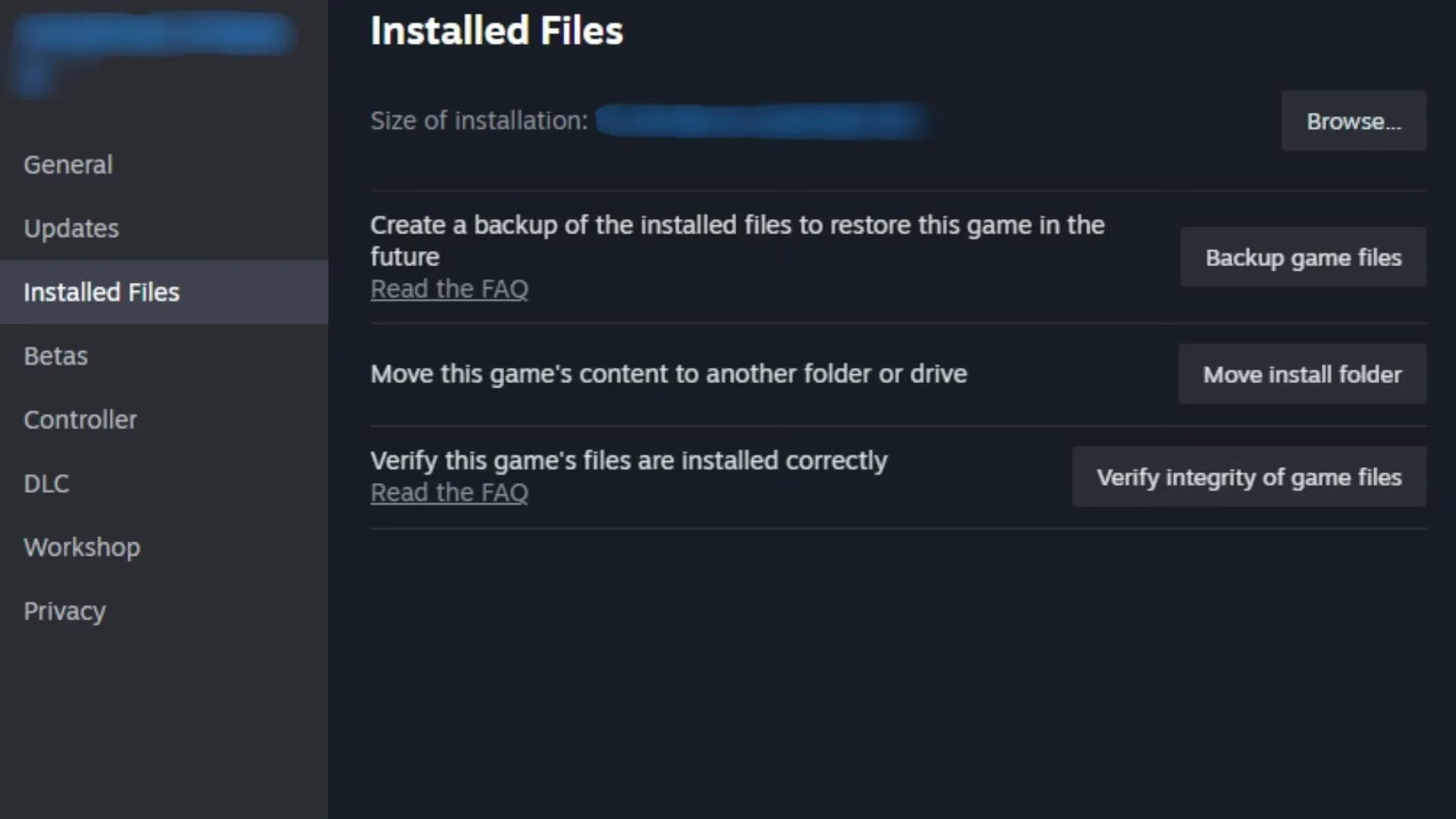
Verify Integrity of Game Files:
This is my go-to fix for almost any Steam game issue. Here’s how you do it:
-
Open your Steam Library.
-
Right-click on Delta Force and select Properties.
-
Navigate to the Installed Files tab.
-
Click the "Verify integrity of game files" button.
Steam will then scan all your game files and compare them to the master version on its servers. If it finds anything missing or corrupted, it will automatically download and replace them. This process might take a few minutes, but it solves the issue a vast majority of the time. Think of it as giving the game a fresh medical check-up!
🎮 The Advanced Tweak: Launch Commands
Sometimes, the game needs a little nudge in the right direction. If verification didn't work, a specific launch command can force the game to use different rendering settings or utilize your PC's hardware more efficiently.
Adding a Launch Command:
-
In your Steam Library, right-click Delta Force and go to Properties again.
-
In the General tab, you'll find a box labeled "Launch Options."
-
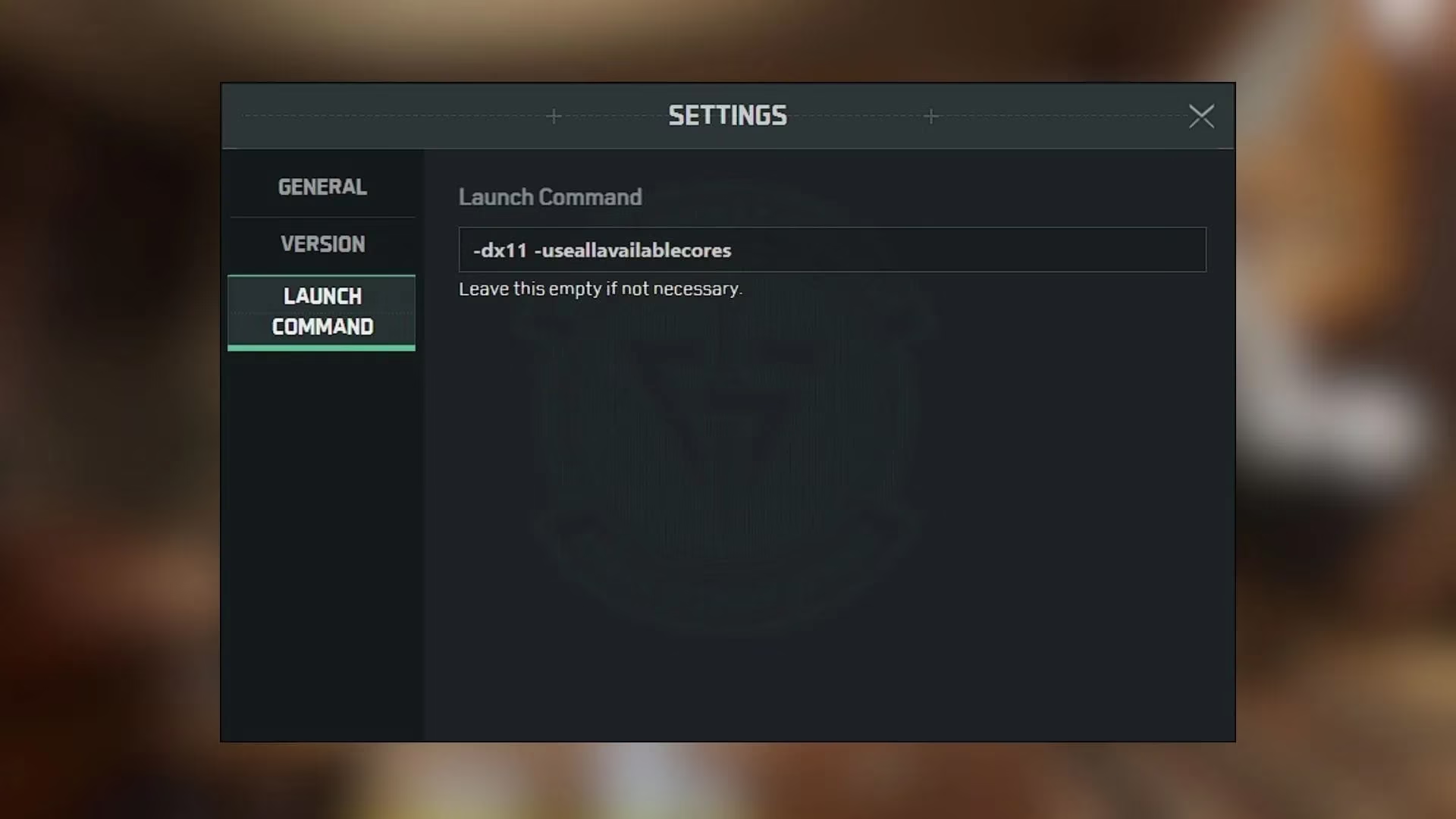
Enter the following command:
-dx11 -useallavailablecores
Let me break down what this does:
-
-dx11: This forces the game to run using DirectX 11. While the game might default to a newer version like DX12, DX11 is often more stable for older game engines or certain hardware configurations. -
-useallavailablecores: This tells the game to utilize all CPU cores available on your processor, which can prevent bottlenecks and improve stability.
Apply the settings, close the window, and try launching the campaign again. This command has been a lifesaver for many players, myself included.
💣 The Nuclear Option: Reinstallation
If all else fails, a clean reinstall is the way to go. I know, it's a pain, especially if you have a slower internet connection. But it ensures you have a completely fresh set of game files, eliminating any deep-seated corruption that verification might have missed.
To reinstall:
-
Back up your save files if possible (check your
Documentsfolder). -
In Steam, right-click Delta Force and select Manage > Uninstall.
-
After uninstallation, restart your PC.
-
Navigate to your Steam installation folder (usually
C:\Program Files (x86)\Steam\steamapps\common\) and delete any remaining Delta Force folder. -
Finally, reinstall the game fresh from your Steam Library.
⏳ The Patient Gamer's Path: Waiting for a Patch
Look, sometimes the issue is genuinely on the developer's end. It could be a bug introduced in a recent update or a rare hardware/software combination they didn't account for. If you've tried every fix here and nothing works, your best bet might be to wait. Keep an eye on the official Delta Force social media channels and the Steam community forums. Report your issue there with as much detail as possible (your PC specs, error messages, steps to reproduce). When enough players report the same problem, it gets prioritized for a fix. While waiting, you can always jump into the multiplayer modes, which often run on different code paths and might work perfectly fine!
My final piece of advice? Don't get discouraged. PC gaming is a wonderful but sometimes finicky ecosystem. What doesn't work today might be fixed with a simple tweak tomorrow. The Delta Force campaign is worth the effort—the tense firefights and authentic atmosphere are a blast. I hope one of these solutions gets you back into the heart of Mogadishu. Good luck, soldier! 🫡
Hey fellow gamers, I know how frustrating it can be when you're all geared up to dive into the intense 1993 Civil War in Somalia through the Delta Force campaign, only to be met with a black screen or a crash. I've been there, staring at my monitor in disbelief. Since the game's release, this notorious issue has plagued many PC players, preventing them from experiencing the Black Hawk Down campaign that many of us were so excited about. Even now, in 2026, while the core gameplay remains fantastic, these technical hiccups can still pop up. The developers at TiMi Studio Group haven't always been quick with official fixes, but don't worry—over my years of gaming, I've compiled a solid list of potential solutions that have worked for me and many others.
Let's talk about why this might be happening. Honestly, the reasons can be as varied as the missions in the game itself. Sometimes, it's the Steam client acting up—a background process might be interfering, or there's a temporary glitch in the connection. Other times, the issue is more local: a corrupted game file that slipped through during installation, a missing dependency, or even a conflict with your PC's hardware or drivers. The TiMi Studio Group hasn't officially pinpointed a single cause, which means we, as players, often have to play detective. But that's okay! I've found that the community's collective troubleshooting wisdom is incredibly powerful.
🛠️ First Steps: The Quick Fixes
Before we dive deep, always start with the basics. These are simple, non-invasive steps that can surprisingly resolve a lot of issues.
-
Restart Everything! I mean it. Close Delta Force completely, then exit the Steam client. Don't just minimize it—use your Task Manager (Ctrl+Shift+Esc) to end all Steam-related tasks. Then, restart Steam and launch the game fresh. This clears temporary caches and resets any hung processes. It sounds too simple, but you'd be amazed how often this works.
-
Update Your Drivers. Head to your graphics card manufacturer's website (NVIDIA or AMD) and download the latest Game Ready or Adrenalin drivers for 2026. Outdated drivers are a prime suspect for game crashes and performance issues.
If the problem persists, it's time to move to more targeted solutions.
🔍 The Core Solutions: Digging Deeper
This is where we get our hands dirty. The most common culprit for the "campaign not working" bug is corrupted or missing game files. Thankfully, Steam has a built-in tool for this.
Verify Integrity of Game Files:
This is my go-to fix for almost any Steam game issue. Here’s how you do it:
-
Open your Steam Library.
-
Right-click on Delta Force and select Properties.
-
Navigate to the Installed Files tab.
-
Click the "Verify integrity of game files" button.
Steam will then scan all your game files and compare them to the master version on its servers. If it finds anything missing or corrupted, it will automatically download and replace them. This process might take a few minutes, but it solves the issue a vast majority of the time. Think of it as giving the game a fresh medical check-up!
🎮 The Advanced Tweak: Launch Commands
Sometimes, the game needs a little nudge in the right direction. If verification didn't work, a specific launch command can force the game to use different rendering settings or utilize your PC's hardware more efficiently.
Adding a Launch Command:
-
In your Steam Library, right-click Delta Force and go to Properties again.
-
In the General tab, you'll find a box labeled "Launch Options."
-
Enter the following command:
-dx11 -useallavailablecores
Let me break down what this does:
-
-dx11: This forces the game to run using DirectX 11. While the game might default to a newer version like DX12, DX11 is often more stable for older game engines or certain hardware configurations. -
-useallavailablecores: This tells the game to utilize all CPU cores available on your processor, which can prevent bottlenecks and improve stability.
Apply the settings, close the window, and try launching the campaign again. This command has been a lifesaver for many players, myself included.
💣 The Nuclear Option: Reinstallation
If all else fails, a clean reinstall is the way to go. I know, it's a pain, especially if you have a slower internet connection. But it ensures you have a completely fresh set of game files, eliminating any deep-seated corruption that verification might have missed.
To reinstall:
-
Back up your save files if possible (check your
Documentsfolder). -
In Steam, right-click Delta Force and select Manage > Uninstall.
-
After uninstallation, restart your PC.
-
Navigate to your Steam installation folder (usually
C:\Program Files (x86)\Steam\steamapps\common\) and delete any remaining Delta Force folder. -
Finally, reinstall the game fresh from your Steam Library.
⏳ The Patient Gamer's Path: Waiting for a Patch
Look, sometimes the issue is genuinely on the developer's end. It could be a bug introduced in a recent update or a rare hardware/software combination they didn't account for. If you've tried every fix here and nothing works, your best bet might be to wait. Keep an eye on the official Delta Force social media channels and the Steam community forums. Report your issue there with as much detail as possible (your PC specs, error messages, steps to reproduce). When enough players report the same problem, it gets prioritized for a fix. While waiting, you can always jump into the multiplayer modes, which often run on different code paths and might work perfectly fine!
My final piece of advice? Don't get discouraged. PC gaming is a wonderful but sometimes finicky ecosystem. What doesn't work today might be fixed with a simple tweak tomorrow. The Delta Force campaign is worth the effort—the tense firefights and authentic atmosphere are a blast. I hope one of these solutions gets you back into the heart of Mogadishu. Good luck, soldier! 🫡