
Delta Force: Hawk Ops RTX 4070 Settings – Still the Competitive King in 2026
Achieve silky-smooth 200+ fps in Delta Force: Hawk Ops with these battle-tested RTX 4070 graphics settings.
Delta Force: Hawk Ops burst onto the scene a couple of years back, and even in 2026 it remains a go‑to for tactical shooter fans who demand silky‑smooth framerates. TiMi Studio Group built the game to run on a potato – the minimum specs were laughably low back in the alpha days – but for competitive warriors who want every advantage,
well‑tuned graphics settings are the secret sauce. With an Nvidia RTX 4070 under the hood, a player can push well past 200 fps without making the game look like a potato itself. Let’s dive into the exact settings that have been battle‑tested since the alpha and still deliver the goods.
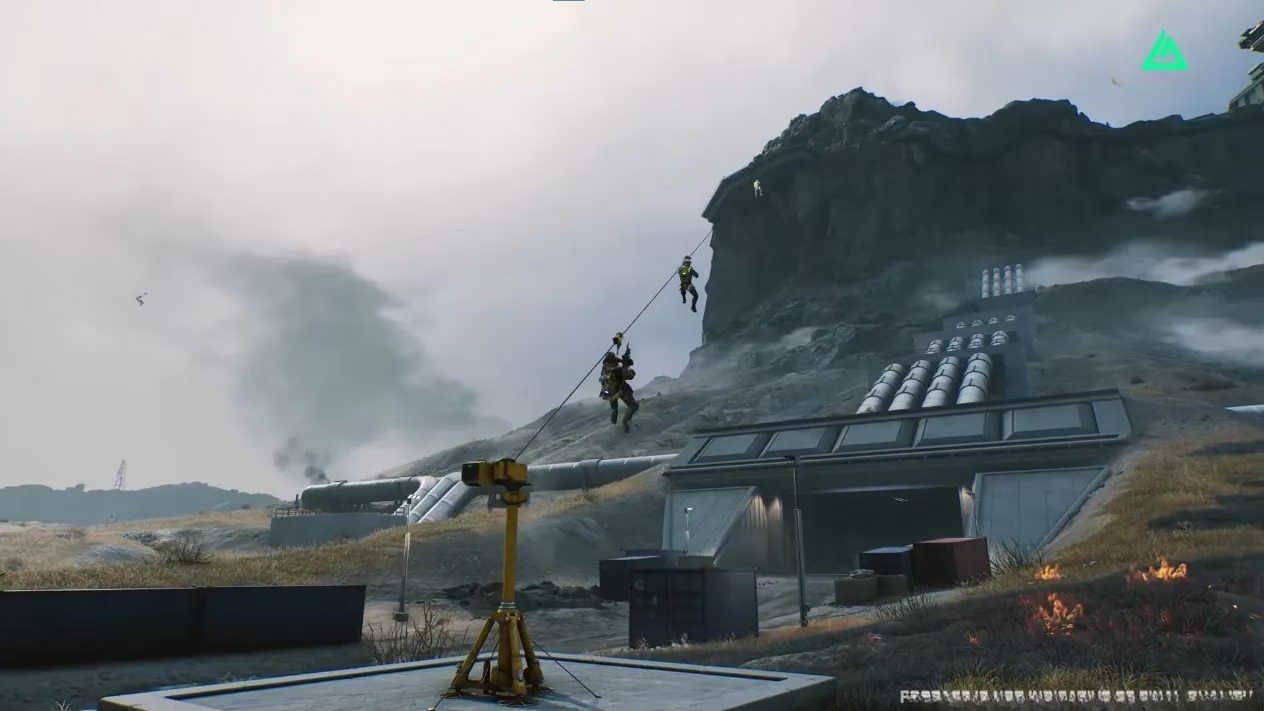
Right out of the gate, a high‑refresh‑rate monitor is a no‑brainer. If a rig is packing a 144 Hz, 240 Hz, or even a 360 Hz panel, the RTX 4070 can stretch its legs. The following presets assume the PC meets the game’s recommended specs (which, by 2026, almost any mid‑range build does) and that the goal is to stay in the competitive sweet spot – clarity where it counts, with every ounce of GPU muscle aimed at frame delivery.
General Display Tweaks
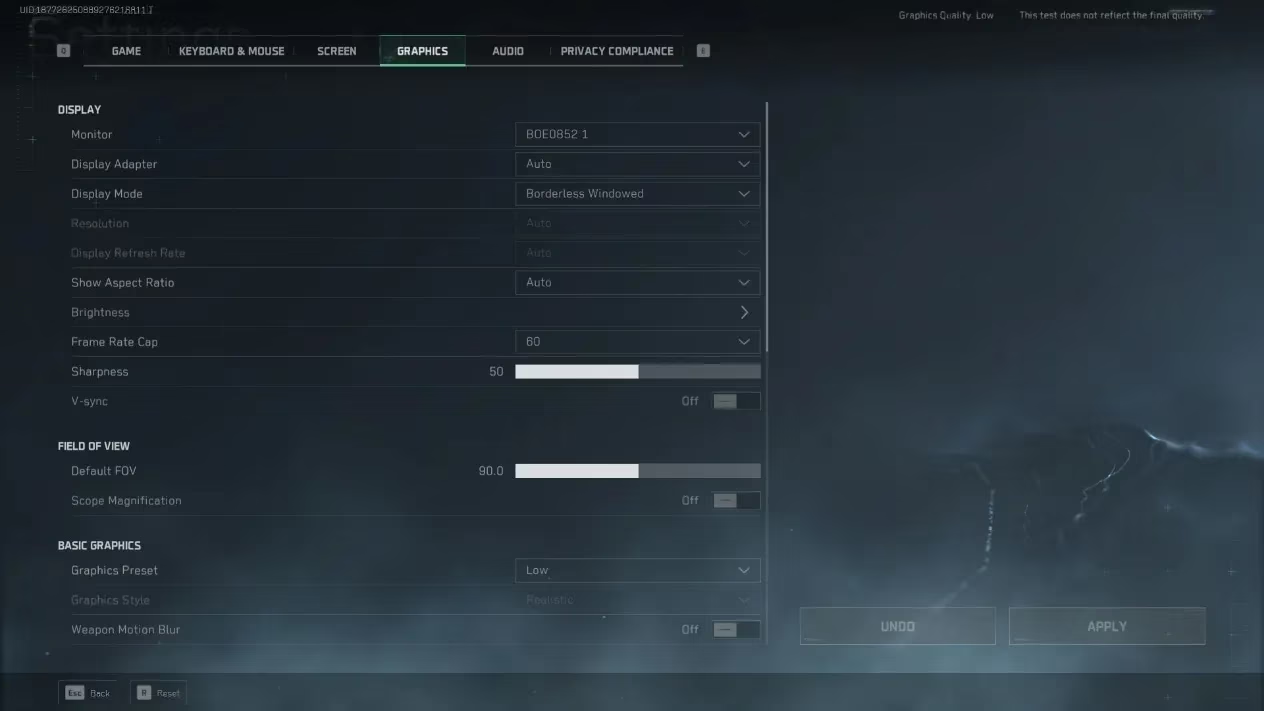
First, in the display settings, choose the RTX 4070 as the adapter and stick to Borderless Windowed mode. It makes alt‑tabbing a breeze and, in 2026, the input lag penalty is virtually nonexistent. Leave the aspect ratio on Auto, set Brightness to 50 (or whatever the monitor calibration prefers), and cap the frame rate at Unlimited. Why leave frames uncapped in 2026? Because NVIDIA Reflex is now woven into the game engine, and uncapped framerates with Reflex keep latency at bay while feeding the monitor all the goodness it can handle.
V‑sync is one of those “it depends” moments. For anyone with a G‑Sync or FreeSync monitor, leave it on to lock in tear‑free motion. If the monitor lacks adaptive sync, turning V‑sync off might shave a millisecond of latency, but screen tearing can rear its ugly head. The default FOV of 90 is the community’s goldilocks number – wide enough for situational awareness, but cranking it to 110 will nibble away a few fps.
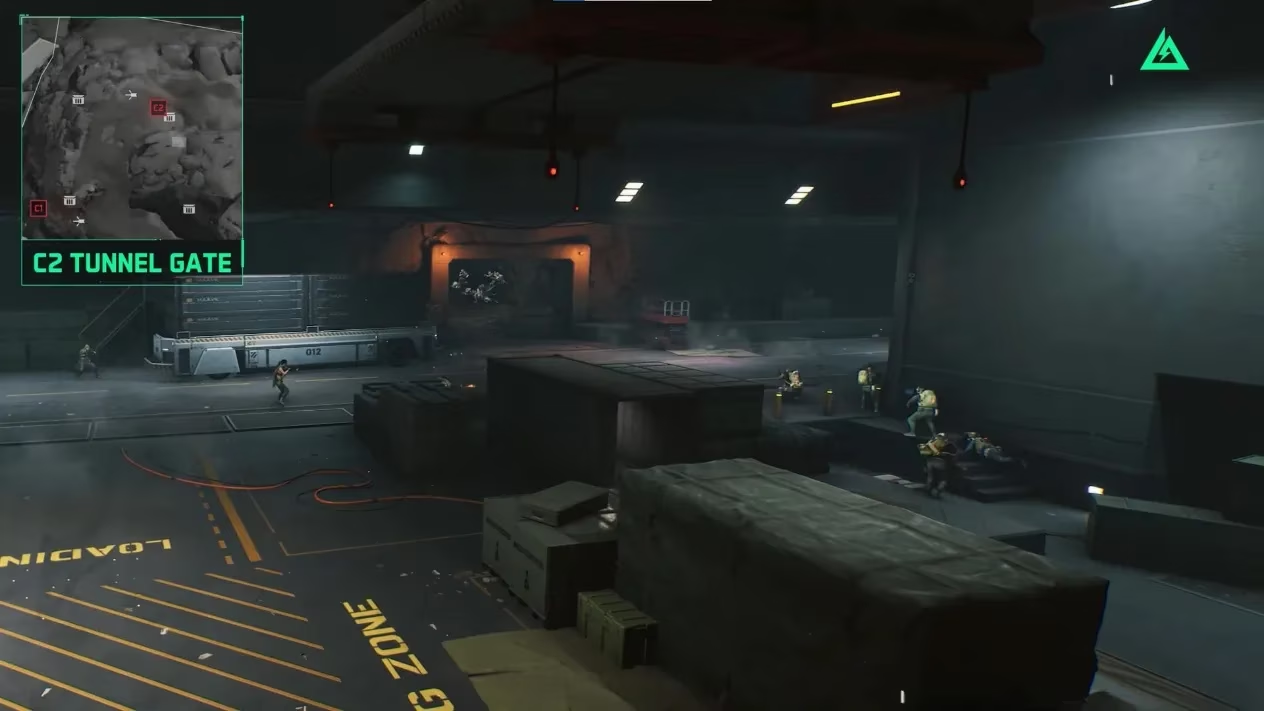
The Core Graphics Sauce
Now for the meat and potatoes. Set the Graphics Preset to Custom – the built‑in presets tend to over‑egg the pudding with unnecessary eye candy. Keep the Graphics Style on Default to avoid any funky post‑processing filters. Weapon Motion Blur is an instant “off” because blur hides enemy movement. Depth of Field similarly gets the boot; competitive players don’t want the background artistically smeared when they’re scanning for a pixel‑sized head.
Here’s where things get juicy. Reflections, Particles, Distortion, and Shadows are all dropped to Low. That might sound drastic, but in a firefight, nobody is admiring shiny puddles or ultra‑soft shadow penumbras. Low shadows free up a significant chunk of GPU time while the game still has enough ambient occlusion baked in to keep things readable. Shadow Map stays on Low for the same reason – crisp, simple shadows that don’t tank the frame times.
Meanwhile, Textures, Texture Filtering, Shaders, and Streaming all sit at High. The RTX 4070’s 12 GB of VRAM is laughing at 1080p or 1440p ultra textures, so there’s zero reason to skimp. Sharp weapons, detailed operator skins, and clear environmental surfaces are all part of staying competitive. Scene Details and Scene View Details are also set to High because draw distance matters – spotting an enemy peeking from a window 200 meters away is easier when the window is actually rendered.
Global Illumination Quality, Volumetric Fog, and Post‑Processing all get the “Low” treatment. Bouncy lighting might look lush, but it eats frames and can even make enemies harder to see in some maps. Volumetric fog is a notorious performance hog, and post‑processing effects like chromatic aberration or lens flares belong in a story mode, not a ranked match. Animation stays on Medium – it’s a sweet spot that keeps character movements fluid without the CPU‑side cost of high animation detail.
Rendering Scale is locked to 100%, because anything below that makes the image a muddy mess, and anything above is just supersampling for show. Super Resolution Mode (DLSS or FSR) is turned Off. In 2026, the RTX 4070 has enough raw grunt to hit 200+ fps natively at 1440p, and turning on upscalers often introduces a fine layer of blur that masks distant targets. NVIDIA Reflex stays On – no discussion needed; cutting the render queue latency is a gift that keeps on giving.
Ray Tracing: Just Let It Go
Some might raise an eyebrow at seeing Enable Ray Tracing set to Off. Yes, the RTX 4070 can do ray tracing, but Delta Force: Hawk Ops is a fast‑paced shooter where every frame counts. The visual uplift from ray‑traced reflections is marginal compared to the fps hit. In a competitive setting, a rock‑solid 240 fps with low settings is worth more than a wobbly 120 fps with shiny floors. The game’s baked lighting already looks sharp, so leaving ray tracing off is the play.
Wrapping Up the Optimisation Journey
After applying this exact recipe, a system armed with an RTX 4070 will run Delta Force: Hawk Ops like a dream. In 1440p, expect framerates well north of 180 fps, often hovering in the 220‑240 range on most maps. At 1080p, the counter practically lives at the unlimited cap. The beauty of this config is its balance – the game stays crisp where it needs to be, while any GPU‑devouring fluff is cut loose.
It’s wild to think these settings were first ironed out during the alpha test back in the day, yet they continue to be the gold standard in 2026. The game’s core hasn’t changed drastically, and neither has the competitive mindset: visibility and frame delivery above all else. So, load up, dial these in, and go stack those kills. A well‑tuned rig is half the battle – the rest is on the operator’s aim.
Delta Force: Hawk Ops burst onto the scene a couple of years back, and even in 2026 it remains a go‑to for tactical shooter fans who demand silky‑smooth framerates. TiMi Studio Group built the game to run on a potato – the minimum specs were laughably low back in the alpha days – but for competitive warriors who want every advantage,
well‑tuned graphics settings are the secret sauce. With an Nvidia RTX 4070 under the hood, a player can push well past 200 fps without making the game look like a potato itself. Let’s dive into the exact settings that have been battle‑tested since the alpha and still deliver the goods.
Right out of the gate, a high‑refresh‑rate monitor is a no‑brainer. If a rig is packing a 144 Hz, 240 Hz, or even a 360 Hz panel, the RTX 4070 can stretch its legs. The following presets assume the PC meets the game’s recommended specs (which, by 2026, almost any mid‑range build does) and that the goal is to stay in the competitive sweet spot – clarity where it counts, with every ounce of GPU muscle aimed at frame delivery.
General Display Tweaks
First, in the display settings, choose the RTX 4070 as the adapter and stick to Borderless Windowed mode. It makes alt‑tabbing a breeze and, in 2026, the input lag penalty is virtually nonexistent. Leave the aspect ratio on Auto, set Brightness to 50 (or whatever the monitor calibration prefers), and cap the frame rate at Unlimited. Why leave frames uncapped in 2026? Because NVIDIA Reflex is now woven into the game engine, and uncapped framerates with Reflex keep latency at bay while feeding the monitor all the goodness it can handle.
V‑sync is one of those “it depends” moments. For anyone with a G‑Sync or FreeSync monitor, leave it on to lock in tear‑free motion. If the monitor lacks adaptive sync, turning V‑sync off might shave a millisecond of latency, but screen tearing can rear its ugly head. The default FOV of 90 is the community’s goldilocks number – wide enough for situational awareness, but cranking it to 110 will nibble away a few fps.
The Core Graphics Sauce
Now for the meat and potatoes. Set the Graphics Preset to Custom – the built‑in presets tend to over‑egg the pudding with unnecessary eye candy. Keep the Graphics Style on Default to avoid any funky post‑processing filters. Weapon Motion Blur is an instant “off” because blur hides enemy movement. Depth of Field similarly gets the boot; competitive players don’t want the background artistically smeared when they’re scanning for a pixel‑sized head.
Here’s where things get juicy. Reflections, Particles, Distortion, and Shadows are all dropped to Low. That might sound drastic, but in a firefight, nobody is admiring shiny puddles or ultra‑soft shadow penumbras. Low shadows free up a significant chunk of GPU time while the game still has enough ambient occlusion baked in to keep things readable. Shadow Map stays on Low for the same reason – crisp, simple shadows that don’t tank the frame times.
Meanwhile, Textures, Texture Filtering, Shaders, and Streaming all sit at High. The RTX 4070’s 12 GB of VRAM is laughing at 1080p or 1440p ultra textures, so there’s zero reason to skimp. Sharp weapons, detailed operator skins, and clear environmental surfaces are all part of staying competitive. Scene Details and Scene View Details are also set to High because draw distance matters – spotting an enemy peeking from a window 200 meters away is easier when the window is actually rendered.
Global Illumination Quality, Volumetric Fog, and Post‑Processing all get the “Low” treatment. Bouncy lighting might look lush, but it eats frames and can even make enemies harder to see in some maps. Volumetric fog is a notorious performance hog, and post‑processing effects like chromatic aberration or lens flares belong in a story mode, not a ranked match. Animation stays on Medium – it’s a sweet spot that keeps character movements fluid without the CPU‑side cost of high animation detail.
Rendering Scale is locked to 100%, because anything below that makes the image a muddy mess, and anything above is just supersampling for show. Super Resolution Mode (DLSS or FSR) is turned Off. In 2026, the RTX 4070 has enough raw grunt to hit 200+ fps natively at 1440p, and turning on upscalers often introduces a fine layer of blur that masks distant targets. NVIDIA Reflex stays On – no discussion needed; cutting the render queue latency is a gift that keeps on giving.
Ray Tracing: Just Let It Go
Some might raise an eyebrow at seeing Enable Ray Tracing set to Off. Yes, the RTX 4070 can do ray tracing, but Delta Force: Hawk Ops is a fast‑paced shooter where every frame counts. The visual uplift from ray‑traced reflections is marginal compared to the fps hit. In a competitive setting, a rock‑solid 240 fps with low settings is worth more than a wobbly 120 fps with shiny floors. The game’s baked lighting already looks sharp, so leaving ray tracing off is the play.
Wrapping Up the Optimisation Journey
After applying this exact recipe, a system armed with an RTX 4070 will run Delta Force: Hawk Ops like a dream. In 1440p, expect framerates well north of 180 fps, often hovering in the 220‑240 range on most maps. At 1080p, the counter practically lives at the unlimited cap. The beauty of this config is its balance – the game stays crisp where it needs to be, while any GPU‑devouring fluff is cut loose.
It’s wild to think these settings were first ironed out during the alpha test back in the day, yet they continue to be the gold standard in 2026. The game’s core hasn’t changed drastically, and neither has the competitive mindset: visibility and frame delivery above all else. So, load up, dial these in, and go stack those kills. A well‑tuned rig is half the battle – the rest is on the operator’s aim.