
Delta Force in 2026: Perfect Settings for RTX 4080 & 4080 Super
Pro‑tested Delta Force graphics settings for RTX 4080 & 4080 Super: unlock max 4K framerate and competitive responsiveness.
It’s 2026, and even after all the updates NovaLogic has rolled out, Delta Force remains one of the most demanding tactical shooters when you push it to the absolute limit. As a professional gamer who’s spent hundreds of hours in this universe, I’ve tested every slider, every checkbox, and every hidden config tweak to squeeze the best balance of visual fidelity and competitive responsiveness out of Nvidia’s RTX 4080 and RTX 4080 Super. Today I’m sharing my personal findings — settings that I’ve refined through patch after patch to guarantee buttery smooth gameplay without sacrificing the gritty, realistic atmosphere that makes Delta Force so immersive.
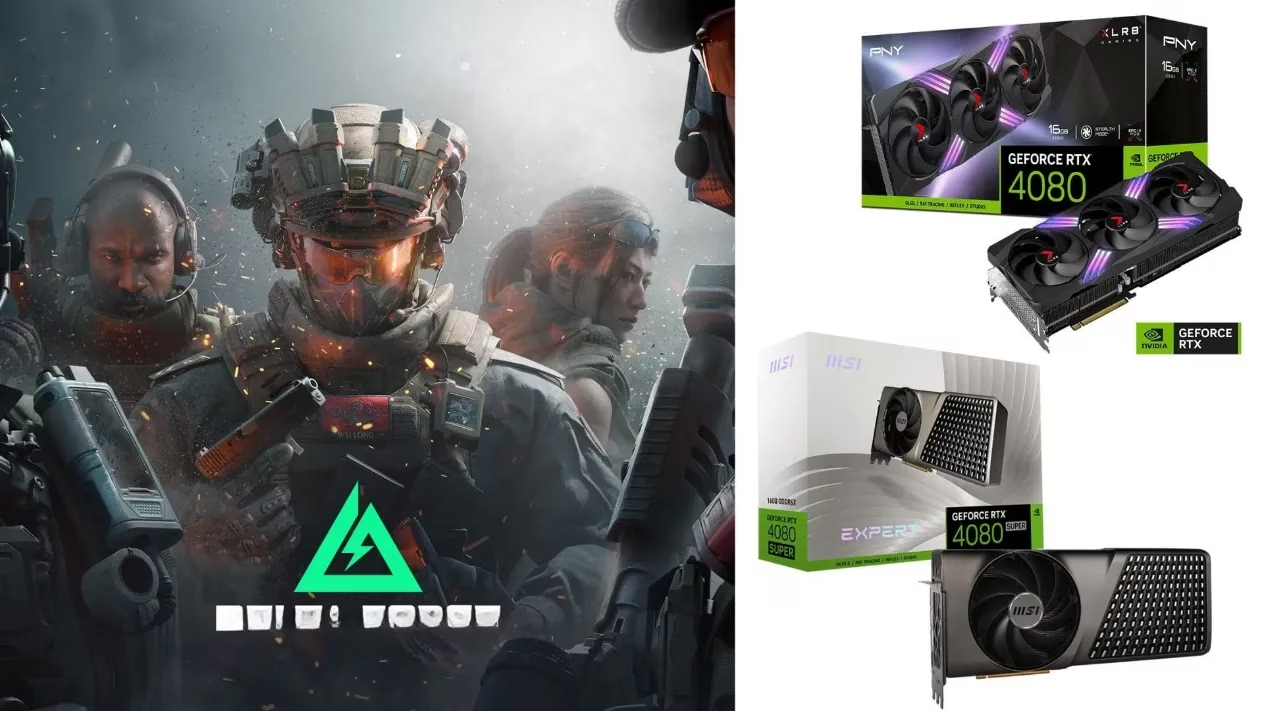
Ever wondered why you’d need to bother with custom graphics settings when your GPU can handle “Ultimate” out of the box? Let me ask you this: what’s more important — a screenshot that looks pretty or split-second target acquisition where every frame counts? In a game where one missed pixel can mean the difference between a clutch win and a frustrating respawn, fine‑tuning your options is non‑negotiable. Both the RTX 4080 and its Super sibling can chew through Delta Force at 4K, but with a few targeted adjustments you’ll get higher average framerates, better frame pacing, and reduced input lag. That’s what we’re after.
Best Delta Force Settings for the Nvidia RTX 4080
If you’re rocking an RTX 4080, you already know that 4K gaming is well within reach. Out of the box, the game delivers around 120 frames per second at this resolution with everything set to Ultimate. But is 120fps really enough for a title where movement and snap‑aiming are key? I’d argue we can tighten things up further. By dropping certain settings that have minimal visual impact but hefty performance cost, and leveraging DLSS intelligently, we can achieve a rock‑solid experience that never dips below those crucial breakpoints.
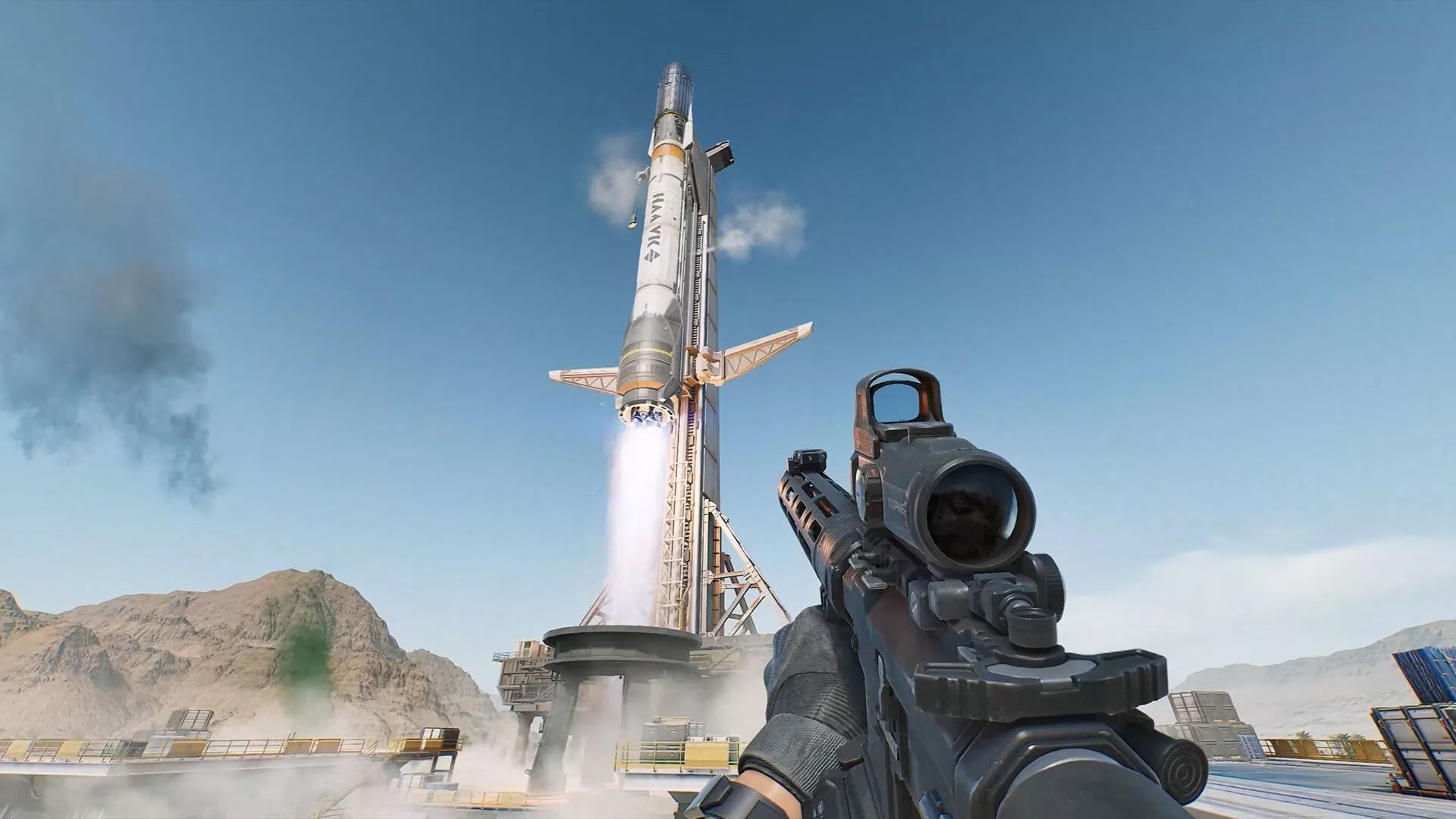
Here’s my personally optimized configuration for the RTX 4080. Notice I’ve turned DLSS to Performance — trust me, at 4K the upscaling artifact is tiny and you gain a significant margin. V‑Sync is off because any modern monitor with G‑Sync or FreeSync will handle tearing without the latency penalty.
| Setting | Value |
|---|---|
| Monitor | Default |
| Display Adapter | Auto |
| Display Mode | Borderless Windowed (or Fullscreen) |
| Resolution | 3840 x 2160 |
| Display Refresh Rate | 144Hz |
| Brightness | Personal preference |
| Frame Rate Cap | Unlimited |
| Sharpness | 50 |
| V‑Sync | Off |
| Default FOV | 90 |
| Scope Magnification | Off |
| Graphics Preset | Custom |
| Graphics Style | Realistic |
| Weapon Motion Blur | Off |
| Reflections | Ultimate |
| Texture Filtering | Ultimate |
| Ambient Occlusion | Ultimate |
| Particles | Ultimate |
| Distortion | Ultimate |
| Screen Details | Ultimate |
| Scene View Distance | Ultimate |
| Rendering Scale | 100 |
| Depth of Field | On |
| Global Illumination Quality | Ultimate |
| Shaders | Ultimate |
| Textures | Ultimate |
| Streaming | Ultimate |
| Shadows | Ultimate |
| Shadow Map | Ultimate |
| Post‑Processing | Ultimate |
| Volumetric Fog | Ultimate |
| Animation | Ultimate |
| Super Resolution Mode | Nvidia DLSS |
| Super Resolution | Performance |
| Nvidia REFLEX | On |
Now, you might be asking: “Why keep Depth of Field on? Doesn’t that blur the edges?” In Delta Force, the implementation is subtle — it only activates when you’re aiming down sights or in certain cinematics, and it actually helps draw your focus to the target. I’ve kept it enabled for that reason. And why a FOV of 90? Competitive shooters often go wider, but at 4K a higher FOV can cause peripheral warping that messes with target recognition. 90 is the sweet spot for most players.
Best Delta Force Settings for the Nvidia RTX 4080 Super
The RTX 4080 Super takes everything up a notch. With the extra CUDA cores and faster memory, you can push framerates into the 130‑140fps range at 4K without breaking a sweat. This means we have breathing room to dial the visuals up even further, shifting the emphasis from pure performance to that jaw‑dropping “Realistic” look the art team intended.
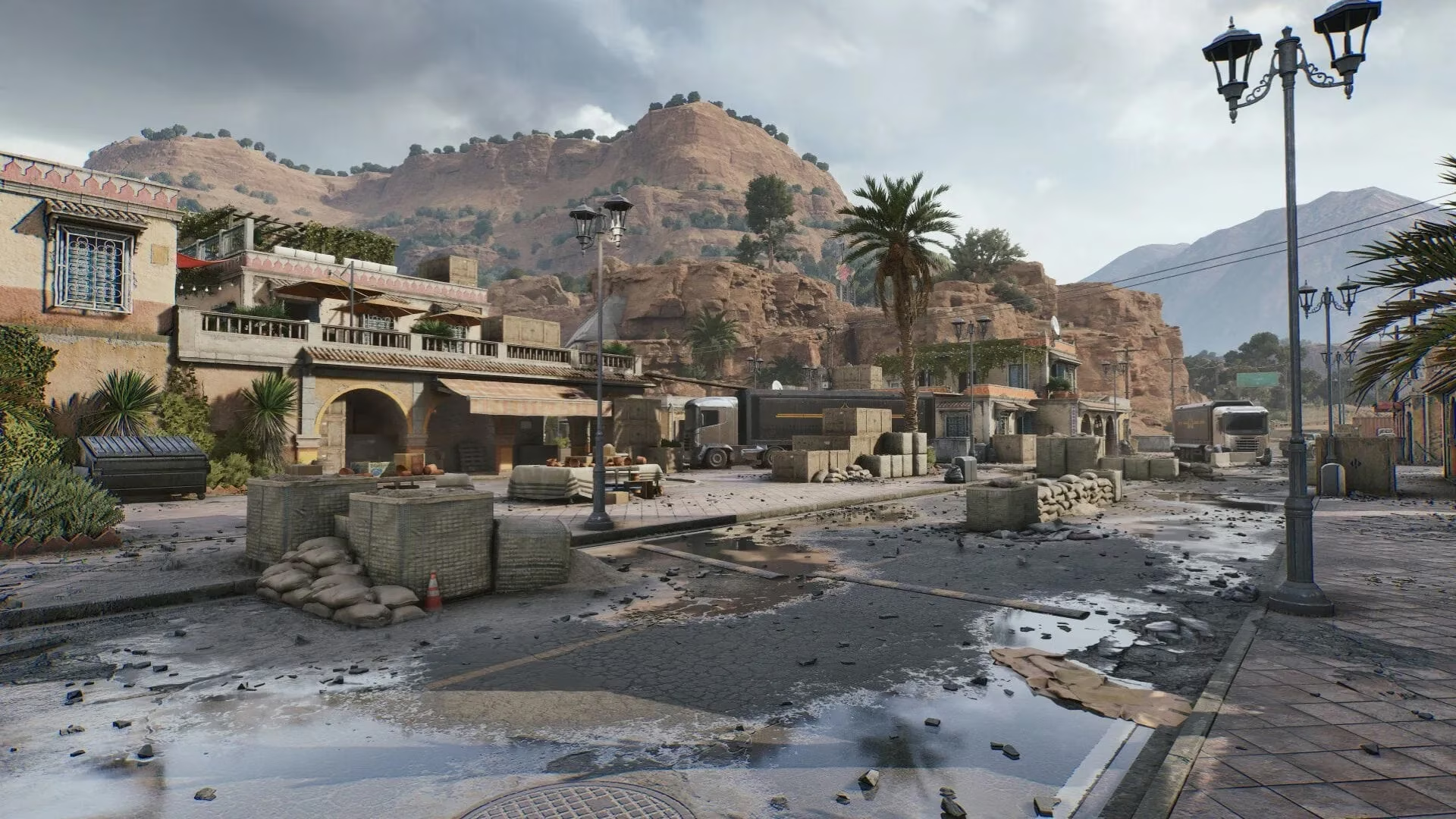
Here, I’ve switched DLSS to Quality mode. Why? Because with the Super’s overhead, you can afford the higher resolution input and enjoy crisper textures, cleaner edges, and more defined shadows. I also decided to enable Weapon Motion Blur — it might seem counterintuitive for a competitive player, but in Delta Force it adds a cinematic feel to gunplay that doesn’t hinder target tracking, especially when you’re running high refresh rates.
| Setting | Value |
|---|---|
| Monitor | Default |
| Display Adapter | Auto |
| Display Mode | Fullscreen |
| Resolution | 3840 x 2160 |
| Display Refresh Rate | 165Hz |
| Brightness | Personal preference |
| Frame Rate Cap | Unlimited |
| Sharpness | 50 |
| V‑Sync | Off |
| Default FOV | 105 |
| Scope Magnification | Off |
| Graphics Preset | Custom |
| Graphics Style | Realistic |
| Weapon Motion Blur | On |
| Reflections | Ultimate |
| Texture Filtering | Ultimate |
| Ambient Occlusion | Ultimate |
| Particles | Ultimate |
| Distortion | Ultimate |
| Screen Details | Ultimate |
| Scene View Distance | Ultimate |
| Rendering Scale | 100 |
| Depth of Field | On |
| Global Illumination Quality | Ultimate |
| Shaders | Ultimate |
| Textures | Ultimate |
| Streaming | Ultimate |
| Shadows | Ultimate |
| Shadow Map | Ultimate |
| Post‑Processing | Ultimate |
| Volumetric Fog | Ultimate |
| Animation | Ultimate |
| Super Resolution Mode | Nvidia DLSS |
| Super Resolution | Quality |
| Nvidia REFLEX | On |
You may have noticed I widened the FOV to 105 on this setup. With the extra horsepower, the slightly wider perspective doesn’t introduce the same performance penalty, and it gives you a minor tactical advantage in spotting flanking enemies. If you feel it’s too “fish‑eye”, drop it back to 90 — no harm done. The key takeaway here is that the RTX 4080 Super lets you have your cake and eat it too: stunning visuals and blistering performance.
Extra Tips for 2026 Players
-
Keep your drivers fresh. I can’t stress this enough. As of 2026, Nvidia’s Game Ready drivers for Delta Force include profile optimizations that can make a 5‑10% difference.
-
Tweak the in‑game sharpness to your taste. The “50” value is neutral; some monitors may benefit from bumping it to 60 if you like a crispier image.
-
Consider capping your frame rate slightly below your monitor’s maximum refresh if you notice any tearing even with adaptive sync. It’s a rare edge case, but it can happen.
-
Experiment with DLSS settings. On the RTX 4080 Super, you can even try DLAA (if available in a future patch) for the ultimate native‑like quality, but for now Quality mode strikes the perfect balance.
At the end of the day, both the RTX 4080 and RTX 4080 Super are absolute beasts for Delta Force. Whether you’re a competitive soldier chasing that extra millisecond of reaction time or a visual connoisseur who wants every shadow and reflection to pop, these settings have you covered. Bookmark this page – I’ll be updating my recommendations as new patches drop. Now get in there and show the battlefield what a well‑tuned rig can do! 🎯
It’s 2026, and even after all the updates NovaLogic has rolled out, Delta Force remains one of the most demanding tactical shooters when you push it to the absolute limit. As a professional gamer who’s spent hundreds of hours in this universe, I’ve tested every slider, every checkbox, and every hidden config tweak to squeeze the best balance of visual fidelity and competitive responsiveness out of Nvidia’s RTX 4080 and RTX 4080 Super. Today I’m sharing my personal findings — settings that I’ve refined through patch after patch to guarantee buttery smooth gameplay without sacrificing the gritty, realistic atmosphere that makes Delta Force so immersive.
Ever wondered why you’d need to bother with custom graphics settings when your GPU can handle “Ultimate” out of the box? Let me ask you this: what’s more important — a screenshot that looks pretty or split-second target acquisition where every frame counts? In a game where one missed pixel can mean the difference between a clutch win and a frustrating respawn, fine‑tuning your options is non‑negotiable. Both the RTX 4080 and its Super sibling can chew through Delta Force at 4K, but with a few targeted adjustments you’ll get higher average framerates, better frame pacing, and reduced input lag. That’s what we’re after.
Best Delta Force Settings for the Nvidia RTX 4080
If you’re rocking an RTX 4080, you already know that 4K gaming is well within reach. Out of the box, the game delivers around 120 frames per second at this resolution with everything set to Ultimate. But is 120fps really enough for a title where movement and snap‑aiming are key? I’d argue we can tighten things up further. By dropping certain settings that have minimal visual impact but hefty performance cost, and leveraging DLSS intelligently, we can achieve a rock‑solid experience that never dips below those crucial breakpoints.
Here’s my personally optimized configuration for the RTX 4080. Notice I’ve turned DLSS to Performance — trust me, at 4K the upscaling artifact is tiny and you gain a significant margin. V‑Sync is off because any modern monitor with G‑Sync or FreeSync will handle tearing without the latency penalty.
| Setting | Value |
|---|---|
| Monitor | Default |
| Display Adapter | Auto |
| Display Mode | Borderless Windowed (or Fullscreen) |
| Resolution | 3840 x 2160 |
| Display Refresh Rate | 144Hz |
| Brightness | Personal preference |
| Frame Rate Cap | Unlimited |
| Sharpness | 50 |
| V‑Sync | Off |
| Default FOV | 90 |
| Scope Magnification | Off |
| Graphics Preset | Custom |
| Graphics Style | Realistic |
| Weapon Motion Blur | Off |
| Reflections | Ultimate |
| Texture Filtering | Ultimate |
| Ambient Occlusion | Ultimate |
| Particles | Ultimate |
| Distortion | Ultimate |
| Screen Details | Ultimate |
| Scene View Distance | Ultimate |
| Rendering Scale | 100 |
| Depth of Field | On |
| Global Illumination Quality | Ultimate |
| Shaders | Ultimate |
| Textures | Ultimate |
| Streaming | Ultimate |
| Shadows | Ultimate |
| Shadow Map | Ultimate |
| Post‑Processing | Ultimate |
| Volumetric Fog | Ultimate |
| Animation | Ultimate |
| Super Resolution Mode | Nvidia DLSS |
| Super Resolution | Performance |
| Nvidia REFLEX | On |
Now, you might be asking: “Why keep Depth of Field on? Doesn’t that blur the edges?” In Delta Force, the implementation is subtle — it only activates when you’re aiming down sights or in certain cinematics, and it actually helps draw your focus to the target. I’ve kept it enabled for that reason. And why a FOV of 90? Competitive shooters often go wider, but at 4K a higher FOV can cause peripheral warping that messes with target recognition. 90 is the sweet spot for most players.
Best Delta Force Settings for the Nvidia RTX 4080 Super
The RTX 4080 Super takes everything up a notch. With the extra CUDA cores and faster memory, you can push framerates into the 130‑140fps range at 4K without breaking a sweat. This means we have breathing room to dial the visuals up even further, shifting the emphasis from pure performance to that jaw‑dropping “Realistic” look the art team intended.
Here, I’ve switched DLSS to Quality mode. Why? Because with the Super’s overhead, you can afford the higher resolution input and enjoy crisper textures, cleaner edges, and more defined shadows. I also decided to enable Weapon Motion Blur — it might seem counterintuitive for a competitive player, but in Delta Force it adds a cinematic feel to gunplay that doesn’t hinder target tracking, especially when you’re running high refresh rates.
| Setting | Value |
|---|---|
| Monitor | Default |
| Display Adapter | Auto |
| Display Mode | Fullscreen |
| Resolution | 3840 x 2160 |
| Display Refresh Rate | 165Hz |
| Brightness | Personal preference |
| Frame Rate Cap | Unlimited |
| Sharpness | 50 |
| V‑Sync | Off |
| Default FOV | 105 |
| Scope Magnification | Off |
| Graphics Preset | Custom |
| Graphics Style | Realistic |
| Weapon Motion Blur | On |
| Reflections | Ultimate |
| Texture Filtering | Ultimate |
| Ambient Occlusion | Ultimate |
| Particles | Ultimate |
| Distortion | Ultimate |
| Screen Details | Ultimate |
| Scene View Distance | Ultimate |
| Rendering Scale | 100 |
| Depth of Field | On |
| Global Illumination Quality | Ultimate |
| Shaders | Ultimate |
| Textures | Ultimate |
| Streaming | Ultimate |
| Shadows | Ultimate |
| Shadow Map | Ultimate |
| Post‑Processing | Ultimate |
| Volumetric Fog | Ultimate |
| Animation | Ultimate |
| Super Resolution Mode | Nvidia DLSS |
| Super Resolution | Quality |
| Nvidia REFLEX | On |
You may have noticed I widened the FOV to 105 on this setup. With the extra horsepower, the slightly wider perspective doesn’t introduce the same performance penalty, and it gives you a minor tactical advantage in spotting flanking enemies. If you feel it’s too “fish‑eye”, drop it back to 90 — no harm done. The key takeaway here is that the RTX 4080 Super lets you have your cake and eat it too: stunning visuals and blistering performance.
Extra Tips for 2026 Players
-
Keep your drivers fresh. I can’t stress this enough. As of 2026, Nvidia’s Game Ready drivers for Delta Force include profile optimizations that can make a 5‑10% difference.
-
Tweak the in‑game sharpness to your taste. The “50” value is neutral; some monitors may benefit from bumping it to 60 if you like a crispier image.
-
Consider capping your frame rate slightly below your monitor’s maximum refresh if you notice any tearing even with adaptive sync. It’s a rare edge case, but it can happen.
-
Experiment with DLSS settings. On the RTX 4080 Super, you can even try DLAA (if available in a future patch) for the ultimate native‑like quality, but for now Quality mode strikes the perfect balance.
At the end of the day, both the RTX 4080 and RTX 4080 Super are absolute beasts for Delta Force. Whether you’re a competitive soldier chasing that extra millisecond of reaction time or a visual connoisseur who wants every shadow and reflection to pop, these settings have you covered. Bookmark this page – I’ll be updating my recommendations as new patches drop. Now get in there and show the battlefield what a well‑tuned rig can do! 🎯