
Delta Force Players on PS5 and Xbox Grapple with Crashing Issues, Find Solutions
The tactical action of *Delta Force* is marred by frustrating crashes on PS5 and Xbox, but powerful solutions like console restarts and connection fixes can save your mission.
It's 2026, and the console launch of Delta Force has been a bit of a rollercoaster. While the game promises intense tactical action, a persistent problem has been hitching a ride for many players on PS5 and Xbox: the dreaded crash. One moment you're in the thick of a firefight, the next, you're staring at your console's home screen. Talk about a mood killer. This isn't exactly a shocker in the gaming world—new big-budget releases often come with a few gremlins in the system, from lag and server errors to these abrupt exits. But for players who've been eagerly waiting, it's a real buzzkill. The good news? The community and developers have been digging, and several workarounds have surfaced to help smooth out the ride.
Hit the Reset Button (Literally)
Sometimes, the oldest trick in the book is the best one. A simple console restart can work wonders. Think of it like giving your PS5 or Xbox a quick nap to clear its head. This can flush out temporary corrupted files, bugs, or glitches that might be causing the game to stumble and fall.
Here’s how to give your console a fresh start:
For PS5 Players:
-
From the home screen, press the PlayStation button on your controller.
-
Navigate to the menu bar at the bottom and scroll over to the power icon.
-
Select the icon and choose "Restart PS5" from the options.
For Xbox Players:
-
Press the Xbox button on your controller to open the guide.
-
Navigate to Profile & system > Settings > General > Power options.
-
Select "Restart console."
Is Your Internet Playing Nice?
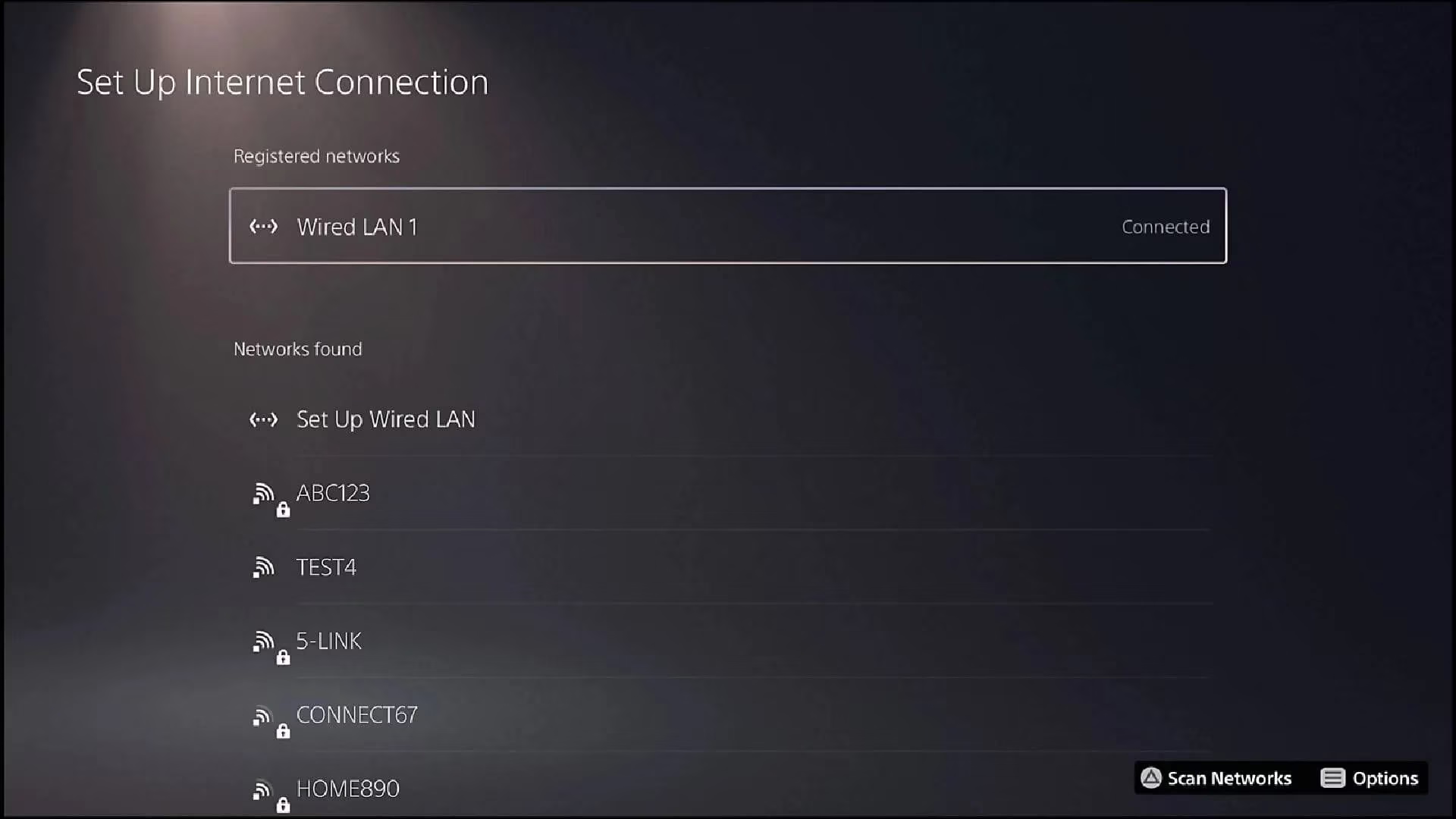
Let's be real, modern games are chatty. They're constantly talking to servers, and if your internet connection gets a case of the hiccups, the game might just give up and crash. It’s a common culprit that’s often overlooked. Ensuring you have a stable, strong connection is key. If you're on Wi-Fi, try switching between the 2.4GHz and 5GHz bands from your console's network settings. Sometimes, one band is less congested than the other. A wired Ethernet connection, if possible, is usually the most reliable way to play.
Give Your Game Files a Check-Up
Game developers are constantly on the case, releasing patches and updates to squash bugs. Making sure your Delta Force is up-to-date is step one. But sometimes, the issue lies with the game files themselves. Maybe a file got corrupted during download or installation. Both PS5 and Xbox have built-in tools to check and repair these files.
-
On PS5: Highlight Delta Force on your home screen, press the Options button, and select "Check for Update." You can also try "Clear Cache" or consider rebuilding the database via Safe Mode for deeper issues.
-
On Xbox: Go to My games & apps > Manage on the Delta Force tile. Here, you can check for updates and, if needed, the console will verify the game's files automatically.
The Nuclear Option: Reinstall
Yeah, we know. For a massive game like Delta Force, reinstalling feels like a chore. It's the gaming equivalent of moving houses. But hear us out—if corrupted files are the root cause, a fresh install is the best way to replace every single one of them with clean copies. It’s a time investment, but it has resolved crashing issues for countless players across many games. Before you do this, make sure your game progress is safely synced to the cloud!
What’s Next?
While these player-driven fixes can help, the ball is ultimately in the developers' court for a permanent solution. The community is holding its breath for an official patch that addresses these stability headaches once and for all. In the meantime, the shared struggle has fostered some classic gamer camaraderie—everyone's just trying to get back into the fight.
It's a familiar dance in 2026: a big launch, some expected turbulence, and players banding together to find solutions while waiting for the official fix. Here’s hoping the Delta Force servers—and your console—find their peace soon. 🎮
It's 2026, and the console launch of Delta Force has been a bit of a rollercoaster. While the game promises intense tactical action, a persistent problem has been hitching a ride for many players on PS5 and Xbox: the dreaded crash. One moment you're in the thick of a firefight, the next, you're staring at your console's home screen. Talk about a mood killer. This isn't exactly a shocker in the gaming world—new big-budget releases often come with a few gremlins in the system, from lag and server errors to these abrupt exits. But for players who've been eagerly waiting, it's a real buzzkill. The good news? The community and developers have been digging, and several workarounds have surfaced to help smooth out the ride.
Hit the Reset Button (Literally)
Sometimes, the oldest trick in the book is the best one. A simple console restart can work wonders. Think of it like giving your PS5 or Xbox a quick nap to clear its head. This can flush out temporary corrupted files, bugs, or glitches that might be causing the game to stumble and fall.
Here’s how to give your console a fresh start:
For PS5 Players:
-
From the home screen, press the PlayStation button on your controller.
-
Navigate to the menu bar at the bottom and scroll over to the power icon.
-
Select the icon and choose "Restart PS5" from the options.
For Xbox Players:
-
Press the Xbox button on your controller to open the guide.
-
Navigate to Profile & system > Settings > General > Power options.
-
Select "Restart console."
Is Your Internet Playing Nice?
Let's be real, modern games are chatty. They're constantly talking to servers, and if your internet connection gets a case of the hiccups, the game might just give up and crash. It’s a common culprit that’s often overlooked. Ensuring you have a stable, strong connection is key. If you're on Wi-Fi, try switching between the 2.4GHz and 5GHz bands from your console's network settings. Sometimes, one band is less congested than the other. A wired Ethernet connection, if possible, is usually the most reliable way to play.
Give Your Game Files a Check-Up
Game developers are constantly on the case, releasing patches and updates to squash bugs. Making sure your Delta Force is up-to-date is step one. But sometimes, the issue lies with the game files themselves. Maybe a file got corrupted during download or installation. Both PS5 and Xbox have built-in tools to check and repair these files.
-
On PS5: Highlight Delta Force on your home screen, press the Options button, and select "Check for Update." You can also try "Clear Cache" or consider rebuilding the database via Safe Mode for deeper issues.
-
On Xbox: Go to My games & apps > Manage on the Delta Force tile. Here, you can check for updates and, if needed, the console will verify the game's files automatically.
The Nuclear Option: Reinstall
Yeah, we know. For a massive game like Delta Force, reinstalling feels like a chore. It's the gaming equivalent of moving houses. But hear us out—if corrupted files are the root cause, a fresh install is the best way to replace every single one of them with clean copies. It’s a time investment, but it has resolved crashing issues for countless players across many games. Before you do this, make sure your game progress is safely synced to the cloud!
What’s Next?
While these player-driven fixes can help, the ball is ultimately in the developers' court for a permanent solution. The community is holding its breath for an official patch that addresses these stability headaches once and for all. In the meantime, the shared struggle has fostered some classic gamer camaraderie—everyone's just trying to get back into the fight.
It's a familiar dance in 2026: a big launch, some expected turbulence, and players banding together to find solutions while waiting for the official fix. Here’s hoping the Delta Force servers—and your console—find their peace soon. 🎮