
My Ultimate Delta Force FPS Boost Settings (2026 Edition)!
Delta Force graphics settings and FPS optimization tips for 2026 boost performance and clarity, perfect for competitive Havoc Warfare gameplay.
Hey squad! 💥 If you're like me, you've been grinding Delta Force since it dropped and you know that every millisecond matters. I've spent way too many hours tweaking every slider and checkbox, and finally I found a setup that delivers buttery smooth frames without sacrificing the crisp visual clarity you need to spot enemies peeking from a mile away. Let me spill the tea on how I maxed out my FPS in 2026 – even with all the updates, these settings are still the GOAT.
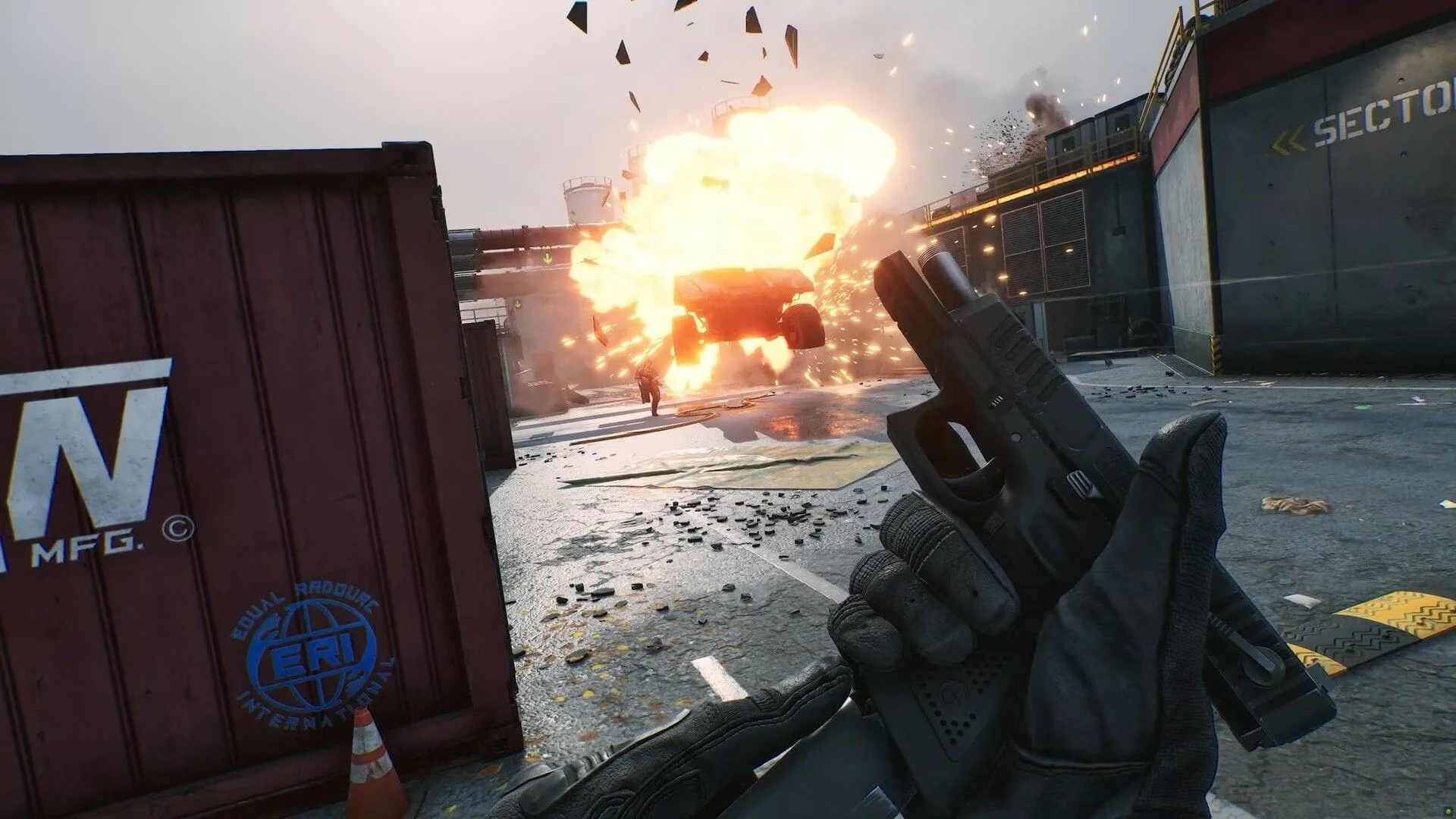
A little background: my rig is nothing insane – a trusty Nvidia RTX 3060 Ti, a Ryzen 5 5600X, and 16 GB RAM. Basically, a mid-tier PC in 2026, yet I'm pushing well over 165 fps on most maps. The secret? Ditching the flashy eye candy that slows you down and honing in on competitive performance. Everything here was tested in the thick of Havoc Warfare, so trust me, it works.
Before we dive into the nitty‑gritty, let me quickly touch on the HUD and interface tweaks that keep my brain focused:
-
Show Performance Parameters: On – Gotta see my frames and latency in the heat of battle.
-
Show Detailed Item Pickup Tips: On – I keep this on purely out of personal preference; it doesn’t affect performance but helps me loot faster.
-
Close Backpack/Pick Up Tab When Being Attacked: Off – Because nothing’s worse than dying while stuck in a menu.
-
Minimap Rotating Perspective: On – Again, my own taste. A rotating map helps my OODA loop.
-
Infantry View Distance: 100 m – Most engagements happen within this range anyway, so why render extra?
-
Ground Vehicle View Distance: 170 m
-
Aircraft View Distance: 250 m
-
Minimap Icon Scale: 85% – This is totally a "you do you" setting. I like a cleaner minimap, so I shrink the icons a bit.
Now, onto the real meat 🥩 – the display and graphics magic that cranks FPS through the roof.
🖥️ Display Settings
-
Monitor: Your default device (obviously)
-
Display Adapter: Use your dedicated graphics card – never play on an iGPU if you can avoid it.
-
Display Mode: Fullscreen – Exclusive fullscreen often gives you the lowest input lag and best performance.
-
Resolution: Auto – Let the game match your monitor’s native. Don’t force a higher render scale unless you enjoy PowerPoint slides.
-
Display Refresh Rate: Auto
-
Display Area Aspect Ratio: Auto
-
Brightness: Set this however you like; it won’t change FPS.
-
In‑Match Frame Rate Cap: 165 (set to your monitor’s max) – I cap just below my monitor’s 165 Hz to keep frame times consistent and avoid tearing.
-
Out‑of‑Match Frame Rate Cap: 60 – No need to stress the GPU in the lobby.
-
Sharpness: 40 – A tiny nudge adds crispness without making edges look like cartoons.
-
V‑Sync: Off – This one is non‑negotiable. V‑Sync might remove tearing but it introduces input lag that gets you killed. Turn it off and ride the raw power.
-
NVIDIA Fast Sync: Off – When you already have a high refresh rate monitor, Fast Sync can sometimes cause micro‑stutter. Off it goes.
-
Default FOV: 120 – Yes, max it out! Wider field of view lets you catch flankers, and the performance hit is tiny compared to the situational awareness you gain.
-
Vehicle 3rd Person FOV: 130 – Same logic; see more around your tank or heli.
-
Scope Magnification: Off – This keeps scopes at a fixed magnification, reducing the need for extra rendering when you ADS.
⚙️ Graphics Settings (The FPS Goldmine)
Here’s where the real gains hide. I start with the Custom preset and manually dial everything as follows. The philosophy: anything that can distract the GPU gets turned down, except for a few key visual cues.
| Setting | Value | Reason for FPS Boost |
|---|---|---|
| Graphics Style | Default | No weird filters that eat performance. |
| Weapon Motion Blur | Off | Motion blur is the enemy of clarity and it wastes GPU cycles. Always off. |
| Reflections | Medium | I keep this at Medium because reflections can help spot enemies around corners in wet maps, but High is just a luxury. |
| Texture Filtering | Medium | Minimal performance cost, but Medium keeps textures from looking like a PS2 game. |
| Ambient Occlusion | Low | Adds subtle shadows in corners but gobbles up frames. Low is more than enough for competitive play. |
| Particles | Low | Explosions and smoke are already chaotic; Low keeps them from tanking your GPU when five grenades go off. |
| Distortion | Low | Heat haze and other effects are just distractions. Low makes everything cleaner. |
| Scene Details | Medium | This controls clutter and small objects. Medium gives you enough environmental cues without overloading polygons. |
| Scene View Details | Low | Reduces distant object rendering. You'll still see enemies, but the extra bushes won't hide them. |
| Rendering Scale | 100 | I keep it at native resolution. Dropping below 100 makes everything fuzzy, which isn't worth the fps boost for me. |
| Depth of Field | Off | Blurring the background looks cinematic, but in a shooter you want everything sharp. Off. |
| Global Illumination Quality | Medium | Affects lighting bounces. Medium gives a good balance of atmosphere and performance. |
| Shaders | Low | Shader quality impacts many visual effects. Low greatly reduces GPU load and the game still looks decent. |
| Textures | Low | This might frighten you, but hear me out: Low textures free up a ton of VRAM and reduce stuttering. In the middle of a firefight, you won't notice the difference. |
| Streaming | Low | Helps with memory management and texture streaming, especially on systems with only 16 GB RAM. |
| Shadows | Low | Shadows are notorious FPS killers. Low shadows still show you where enemies are, but without the GPU‑melting soft shadows. |
| Shadow Map | Medium | Combined with Low shadows, Medium shadow map resolution gives decent shadow fidelity at a fraction of the cost. |
| Post‑Processing | Low | Bloom, lens flares, color grading – all beautiful but utterly useless when you're trying to spot a sniper's glint. Low is the way. |
| Volumetric Fog | Low | Fog effects can hide enemies and crush performance. Low keeps the air clear. |
| Animation | Medium | Controls character movement smoothness. Medium is fine; you don't need ultra‑detailed leg movements to win gunfights. |
| Super Resolution Mode | Off | DLSS/FSR can introduce ghosting and input lag. In 2026, our mid‑range cards handle 1080p/1440p natively just fine. I leave it off for crisp latency. |
| NVIDIA REFLEX Low Latency | On | My secret weapon ⚡. This reduces system latency noticeably, making every click feel instantaneous. Always On. |
A couple of these settings – like Particles and Distortion – are absolutely trivial for competitive play, so I slam them to Low without a second thought. The same goes for Shadows and Post‑Processing. The performance uplift from these alone can be 20–30 fps on a mid‑range rig!
🎮 Final Tweaks & Personal Touch
Remember, every system is a unique snowflake. You might find that your graphics card prefers Textures on Medium if it has extra VRAM, or that Scene Details on High doesn't hurt your frame rate much. Use the in‑game performance overlay (Show Performance Parameters) to see what’s bottlenecking you and adjust accordingly.
My personal flow: I always keep NVIDIA Reflex on and V‑Sync off, then I work backwards from the lowest settings upwards until I find the sweet spot where I’m both competitive and not disgusted by the visuals. That sweet spot – for me – is exactly the list above.
Ever since I locked in these settings, my K/D has climbed and I’m tracking enemies like never before. No more stutter when a quad‑bike explodes right in front of me. No more dying because my input lag made me fire a millisecond late. Just pure, silky‑smooth Delta Force action 😎.
Give these a try and let me know which setting surprised you the most! Drop a ❤️ if you found this helpful, and I'll see you on the battlefield – stay frosty! 🎯
Hey squad! 💥 If you're like me, you've been grinding Delta Force since it dropped and you know that every millisecond matters. I've spent way too many hours tweaking every slider and checkbox, and finally I found a setup that delivers buttery smooth frames without sacrificing the crisp visual clarity you need to spot enemies peeking from a mile away. Let me spill the tea on how I maxed out my FPS in 2026 – even with all the updates, these settings are still the GOAT.
A little background: my rig is nothing insane – a trusty Nvidia RTX 3060 Ti, a Ryzen 5 5600X, and 16 GB RAM. Basically, a mid-tier PC in 2026, yet I'm pushing well over 165 fps on most maps. The secret? Ditching the flashy eye candy that slows you down and honing in on competitive performance. Everything here was tested in the thick of Havoc Warfare, so trust me, it works.
Before we dive into the nitty‑gritty, let me quickly touch on the HUD and interface tweaks that keep my brain focused:
-
Show Performance Parameters: On – Gotta see my frames and latency in the heat of battle.
-
Show Detailed Item Pickup Tips: On – I keep this on purely out of personal preference; it doesn’t affect performance but helps me loot faster.
-
Close Backpack/Pick Up Tab When Being Attacked: Off – Because nothing’s worse than dying while stuck in a menu.
-
Minimap Rotating Perspective: On – Again, my own taste. A rotating map helps my OODA loop.
-
Infantry View Distance: 100 m – Most engagements happen within this range anyway, so why render extra?
-
Ground Vehicle View Distance: 170 m
-
Aircraft View Distance: 250 m
-
Minimap Icon Scale: 85% – This is totally a "you do you" setting. I like a cleaner minimap, so I shrink the icons a bit.
Now, onto the real meat 🥩 – the display and graphics magic that cranks FPS through the roof.
🖥️ Display Settings
-
Monitor: Your default device (obviously)
-
Display Adapter: Use your dedicated graphics card – never play on an iGPU if you can avoid it.
-
Display Mode: Fullscreen – Exclusive fullscreen often gives you the lowest input lag and best performance.
-
Resolution: Auto – Let the game match your monitor’s native. Don’t force a higher render scale unless you enjoy PowerPoint slides.
-
Display Refresh Rate: Auto
-
Display Area Aspect Ratio: Auto
-
Brightness: Set this however you like; it won’t change FPS.
-
In‑Match Frame Rate Cap: 165 (set to your monitor’s max) – I cap just below my monitor’s 165 Hz to keep frame times consistent and avoid tearing.
-
Out‑of‑Match Frame Rate Cap: 60 – No need to stress the GPU in the lobby.
-
Sharpness: 40 – A tiny nudge adds crispness without making edges look like cartoons.
-
V‑Sync: Off – This one is non‑negotiable. V‑Sync might remove tearing but it introduces input lag that gets you killed. Turn it off and ride the raw power.
-
NVIDIA Fast Sync: Off – When you already have a high refresh rate monitor, Fast Sync can sometimes cause micro‑stutter. Off it goes.
-
Default FOV: 120 – Yes, max it out! Wider field of view lets you catch flankers, and the performance hit is tiny compared to the situational awareness you gain.
-
Vehicle 3rd Person FOV: 130 – Same logic; see more around your tank or heli.
-
Scope Magnification: Off – This keeps scopes at a fixed magnification, reducing the need for extra rendering when you ADS.
⚙️ Graphics Settings (The FPS Goldmine)
Here’s where the real gains hide. I start with the Custom preset and manually dial everything as follows. The philosophy: anything that can distract the GPU gets turned down, except for a few key visual cues.
| Setting | Value | Reason for FPS Boost |
|---|---|---|
| Graphics Style | Default | No weird filters that eat performance. |
| Weapon Motion Blur | Off | Motion blur is the enemy of clarity and it wastes GPU cycles. Always off. |
| Reflections | Medium | I keep this at Medium because reflections can help spot enemies around corners in wet maps, but High is just a luxury. |
| Texture Filtering | Medium | Minimal performance cost, but Medium keeps textures from looking like a PS2 game. |
| Ambient Occlusion | Low | Adds subtle shadows in corners but gobbles up frames. Low is more than enough for competitive play. |
| Particles | Low | Explosions and smoke are already chaotic; Low keeps them from tanking your GPU when five grenades go off. |
| Distortion | Low | Heat haze and other effects are just distractions. Low makes everything cleaner. |
| Scene Details | Medium | This controls clutter and small objects. Medium gives you enough environmental cues without overloading polygons. |
| Scene View Details | Low | Reduces distant object rendering. You'll still see enemies, but the extra bushes won't hide them. |
| Rendering Scale | 100 | I keep it at native resolution. Dropping below 100 makes everything fuzzy, which isn't worth the fps boost for me. |
| Depth of Field | Off | Blurring the background looks cinematic, but in a shooter you want everything sharp. Off. |
| Global Illumination Quality | Medium | Affects lighting bounces. Medium gives a good balance of atmosphere and performance. |
| Shaders | Low | Shader quality impacts many visual effects. Low greatly reduces GPU load and the game still looks decent. |
| Textures | Low | This might frighten you, but hear me out: Low textures free up a ton of VRAM and reduce stuttering. In the middle of a firefight, you won't notice the difference. |
| Streaming | Low | Helps with memory management and texture streaming, especially on systems with only 16 GB RAM. |
| Shadows | Low | Shadows are notorious FPS killers. Low shadows still show you where enemies are, but without the GPU‑melting soft shadows. |
| Shadow Map | Medium | Combined with Low shadows, Medium shadow map resolution gives decent shadow fidelity at a fraction of the cost. |
| Post‑Processing | Low | Bloom, lens flares, color grading – all beautiful but utterly useless when you're trying to spot a sniper's glint. Low is the way. |
| Volumetric Fog | Low | Fog effects can hide enemies and crush performance. Low keeps the air clear. |
| Animation | Medium | Controls character movement smoothness. Medium is fine; you don't need ultra‑detailed leg movements to win gunfights. |
| Super Resolution Mode | Off | DLSS/FSR can introduce ghosting and input lag. In 2026, our mid‑range cards handle 1080p/1440p natively just fine. I leave it off for crisp latency. |
| NVIDIA REFLEX Low Latency | On | My secret weapon ⚡. This reduces system latency noticeably, making every click feel instantaneous. Always On. |
A couple of these settings – like Particles and Distortion – are absolutely trivial for competitive play, so I slam them to Low without a second thought. The same goes for Shadows and Post‑Processing. The performance uplift from these alone can be 20–30 fps on a mid‑range rig!
🎮 Final Tweaks & Personal Touch
Remember, every system is a unique snowflake. You might find that your graphics card prefers Textures on Medium if it has extra VRAM, or that Scene Details on High doesn't hurt your frame rate much. Use the in‑game performance overlay (Show Performance Parameters) to see what’s bottlenecking you and adjust accordingly.
My personal flow: I always keep NVIDIA Reflex on and V‑Sync off, then I work backwards from the lowest settings upwards until I find the sweet spot where I’m both competitive and not disgusted by the visuals. That sweet spot – for me – is exactly the list above.
Ever since I locked in these settings, my K/D has climbed and I’m tracking enemies like never before. No more stutter when a quad‑bike explodes right in front of me. No more dying because my input lag made me fire a millisecond late. Just pure, silky‑smooth Delta Force action 😎.
Give these a try and let me know which setting surprised you the most! Drop a ❤️ if you found this helpful, and I'll see you on the battlefield – stay frosty! 🎯