
Tackling Delta Force PC Performance Issues: A Guide to Fix Stuttering and Frame Drops
Fix Delta Force stuttering and FPS drops on PC with key troubleshooting steps. Disable problematic settings like Super Resolution and manage system heat for smoother tactical gameplay.
Delta Force has arrived on PC, bringing its intense tactical action to Steam. Yet, like many new releases, its launch has been accompanied by a wave of performance complaints from players. Gamers report frustrating stuttering and frequent frame drops, issues that can disrupt the precision and flow crucial to a military shooter. Even those with high-end GPUs, the best hardware for Delta Force, haven't been immune. While waiting for official patches from the developers, players have discovered several potential workarounds to smooth out their experience. This guide explores these troubleshooting steps, offering a path to more stable gameplay.
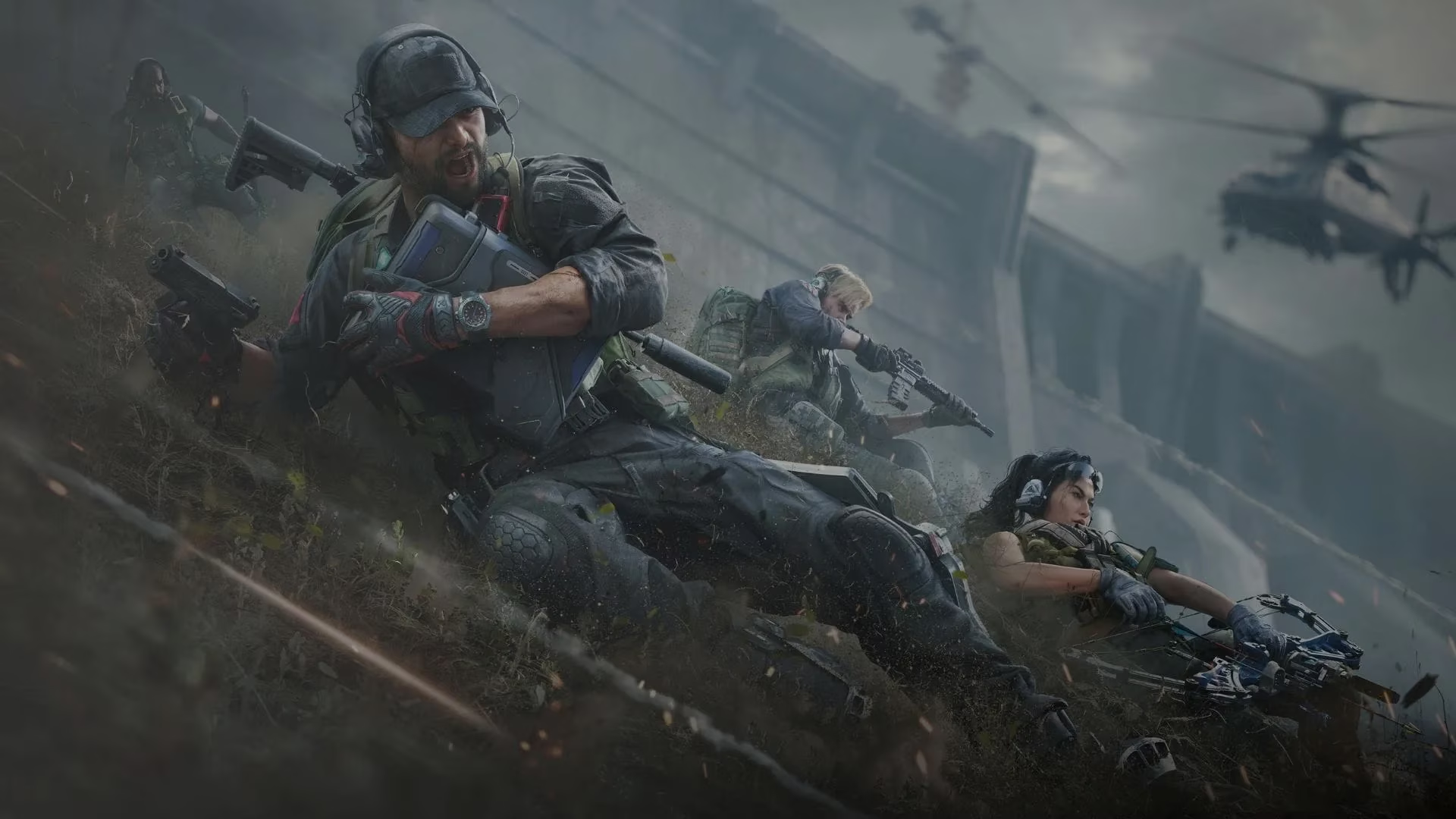
Understanding the root causes is the first step toward a fix. Performance problems in Delta Force can stem from a variety of sources on a PC system. Common culprits include missing or corrupted game files, system components overheating, outdated graphics card drivers, or simply temporary software glitches. Pinpointing the exact cause can be tricky, but a methodical approach often yields results.
🔧 Adjust In-Game Settings: The First Line of Defense
Surprisingly, some of the very features designed to enhance performance might be causing the trouble. Two settings in particular, Super Resolution and NVIDIA Reflex, have been implicated. While NVIDIA Reflex aims to reduce system latency for more responsive controls, and Super Resolution can boost visual fidelity, in Delta Force they appear to have the opposite effect for many. Numerous players have reported that simply turning off both these options resolved their stuttering and FPS drop issues. It's a quick and easy first step that's worth trying before diving deeper.

🌡️ Keep Your Cool: Preventing System Overheating
Intense shooters like Delta Force push your hardware to its limits, which can lead to overheating. When your CPU or GPU exceeds safe temperature thresholds, performance throttling kicks in, causing stutters, crashes, and frame drops. This is a major cause of instability. You can monitor your system's vitals using temperature software. If temperatures are high, consider these preventative measures:
-
Clean your PC: Dust buildup inside your case is a primary insulator. A thorough cleaning can significantly improve airflow and cooling.
-
Reapply thermal paste: Over time, the thermal paste between your CPU/GPU and their coolers can dry out and become less effective. Replacing it can lower temperatures noticeably.
-
Improve case airflow: Ensure your case fans are working correctly and consider optimizing their configuration for better intake and exhaust.
🛠️ Verify and Repair Game Files
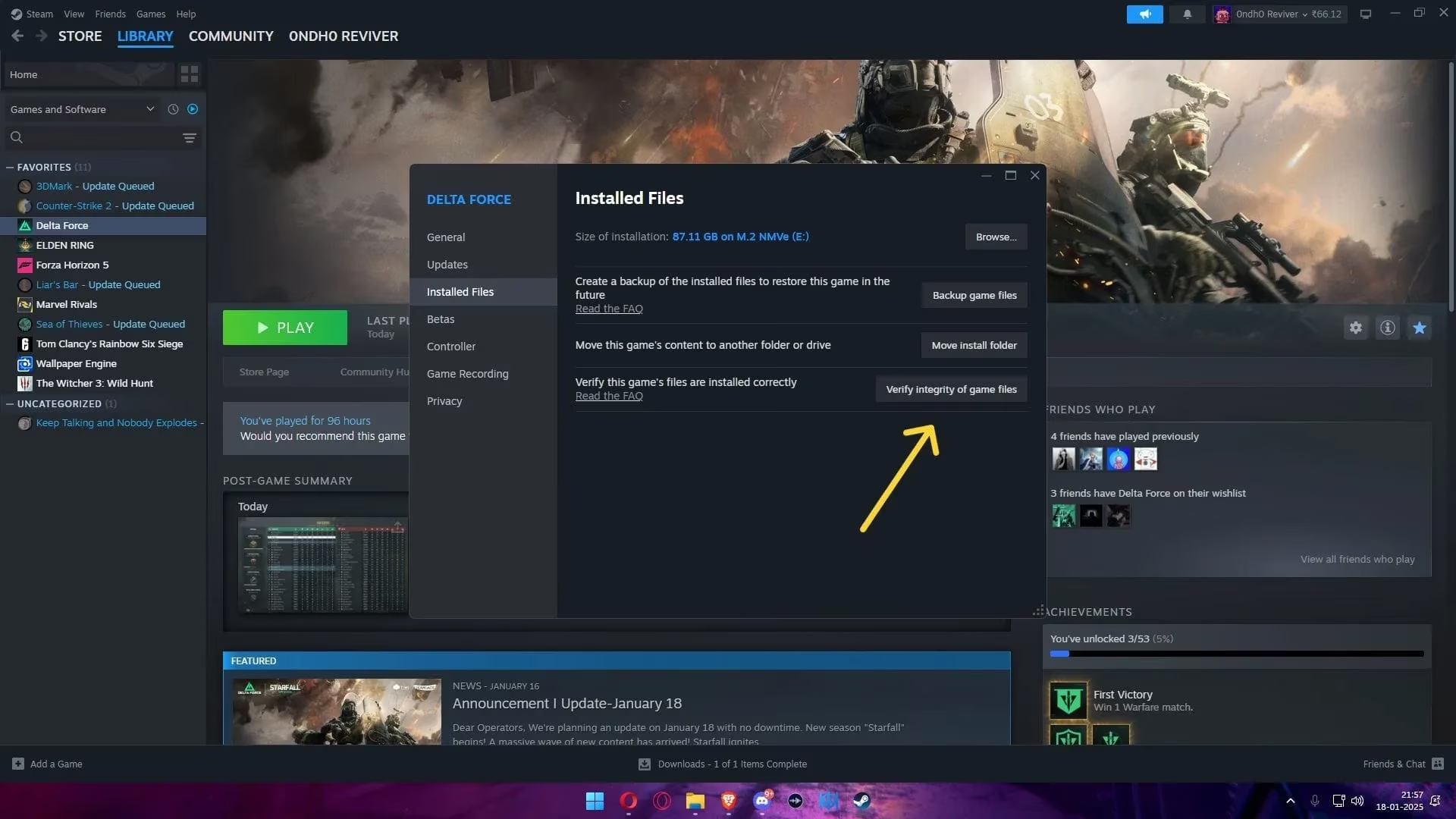
Corrupted or missing game files are a classic source of crashes and odd behavior. This can happen to anyone, regardless of internet stability. Fortunately, Steam provides a built-in tool to check and fix this.
Here is a simple step-by-step process to verify your game files:
-
Launch the Steam client.
-
Navigate to your Library.
-
Right-click on Delta Force in your game list.
-
Select 'Properties' from the menu.
-
Go to the 'Installed Files' tab.
-
Click the 'Verify Integrity of Game Files' button.
Steam will then scan your installation and automatically replace any problematic files. If verification doesn't help and problems persist, a complete reinstall of the game is the next logical step. This ensures a completely fresh set of files, eliminating any deep-seated corruption.
🚀 Update Your Graphics Drivers
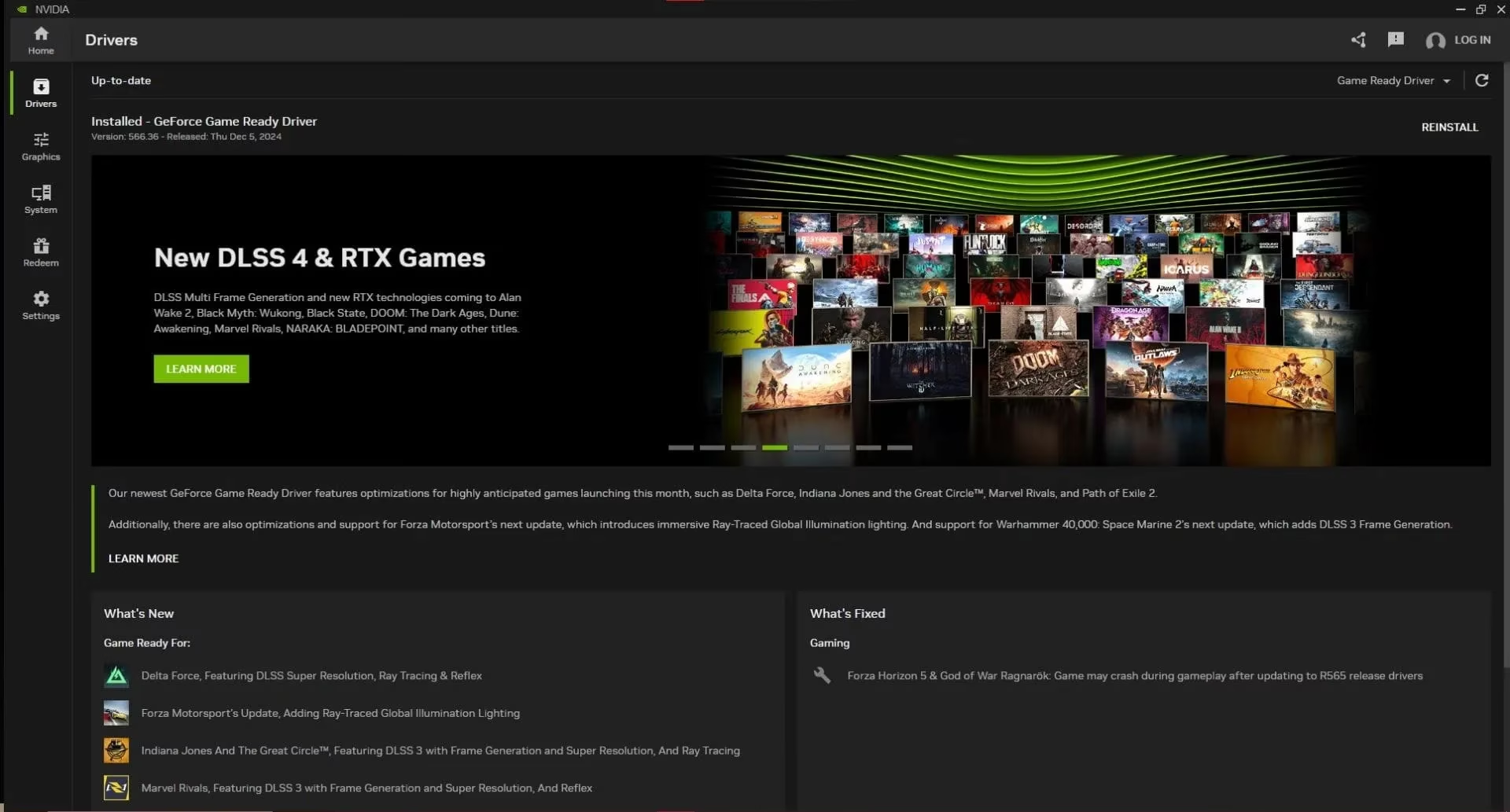
Running outdated GPU drivers is a surefire way to encounter compatibility and performance issues with new games. Companies like NVIDIA and AMD regularly release driver updates optimized for the latest titles. An old driver might lack crucial fixes or optimizations specifically for Delta Force.
| Action | Purpose |
|---|---|
| Check for Updates | Use your GPU's official control panel (NVIDIA GeForce Experience / AMD Adrenalin) to scan for the latest driver. |
| Perform a Clean Install | When updating, select the option for a 'Custom' or 'Clean' installation to remove old driver files completely. |
| Stay Updated | Enable notifications for new driver releases, especially around major game updates. |
Keeping your drivers current is one of the most effective general maintenance tasks for any PC gamer.
Final Thoughts and Looking Ahead
While these workarounds have helped many players achieve smoother performance in Delta Force, they are not guaranteed fixes for every system configuration. The gaming community's collective troubleshooting highlights the common pain points of new PC releases. The most reliable long-term solution will come from the developers themselves. Team Jade is likely already working on performance patches and optimizations based on player feedback since the game's release. In the meantime, players are encouraged to try these steps—starting with the simplest settings changes—to reclaim a stable and enjoyable tactical combat experience. As we move further into 2026, the expectation for polished PC launches remains high, and the community's proactive sharing of solutions continues to be an invaluable resource.
Delta Force has arrived on PC, bringing its intense tactical action to Steam. Yet, like many new releases, its launch has been accompanied by a wave of performance complaints from players. Gamers report frustrating stuttering and frequent frame drops, issues that can disrupt the precision and flow crucial to a military shooter. Even those with high-end GPUs, the best hardware for Delta Force, haven't been immune. While waiting for official patches from the developers, players have discovered several potential workarounds to smooth out their experience. This guide explores these troubleshooting steps, offering a path to more stable gameplay.
Understanding the root causes is the first step toward a fix. Performance problems in Delta Force can stem from a variety of sources on a PC system. Common culprits include missing or corrupted game files, system components overheating, outdated graphics card drivers, or simply temporary software glitches. Pinpointing the exact cause can be tricky, but a methodical approach often yields results.
🔧 Adjust In-Game Settings: The First Line of Defense
Surprisingly, some of the very features designed to enhance performance might be causing the trouble. Two settings in particular, Super Resolution and NVIDIA Reflex, have been implicated. While NVIDIA Reflex aims to reduce system latency for more responsive controls, and Super Resolution can boost visual fidelity, in Delta Force they appear to have the opposite effect for many. Numerous players have reported that simply turning off both these options resolved their stuttering and FPS drop issues. It's a quick and easy first step that's worth trying before diving deeper.
🌡️ Keep Your Cool: Preventing System Overheating
Intense shooters like Delta Force push your hardware to its limits, which can lead to overheating. When your CPU or GPU exceeds safe temperature thresholds, performance throttling kicks in, causing stutters, crashes, and frame drops. This is a major cause of instability. You can monitor your system's vitals using temperature software. If temperatures are high, consider these preventative measures:
-
Clean your PC: Dust buildup inside your case is a primary insulator. A thorough cleaning can significantly improve airflow and cooling.
-
Reapply thermal paste: Over time, the thermal paste between your CPU/GPU and their coolers can dry out and become less effective. Replacing it can lower temperatures noticeably.
-
Improve case airflow: Ensure your case fans are working correctly and consider optimizing their configuration for better intake and exhaust.
🛠️ Verify and Repair Game Files
Corrupted or missing game files are a classic source of crashes and odd behavior. This can happen to anyone, regardless of internet stability. Fortunately, Steam provides a built-in tool to check and fix this.
Here is a simple step-by-step process to verify your game files:
-
Launch the Steam client.
-
Navigate to your Library.
-
Right-click on Delta Force in your game list.
-
Select 'Properties' from the menu.
-
Go to the 'Installed Files' tab.
-
Click the 'Verify Integrity of Game Files' button.
Steam will then scan your installation and automatically replace any problematic files. If verification doesn't help and problems persist, a complete reinstall of the game is the next logical step. This ensures a completely fresh set of files, eliminating any deep-seated corruption.
🚀 Update Your Graphics Drivers
Running outdated GPU drivers is a surefire way to encounter compatibility and performance issues with new games. Companies like NVIDIA and AMD regularly release driver updates optimized for the latest titles. An old driver might lack crucial fixes or optimizations specifically for Delta Force.
| Action | Purpose |
|---|---|
| Check for Updates | Use your GPU's official control panel (NVIDIA GeForce Experience / AMD Adrenalin) to scan for the latest driver. |
| Perform a Clean Install | When updating, select the option for a 'Custom' or 'Clean' installation to remove old driver files completely. |
| Stay Updated | Enable notifications for new driver releases, especially around major game updates. |
Keeping your drivers current is one of the most effective general maintenance tasks for any PC gamer.
Final Thoughts and Looking Ahead
While these workarounds have helped many players achieve smoother performance in Delta Force, they are not guaranteed fixes for every system configuration. The gaming community's collective troubleshooting highlights the common pain points of new PC releases. The most reliable long-term solution will come from the developers themselves. Team Jade is likely already working on performance patches and optimizations based on player feedback since the game's release. In the meantime, players are encouraged to try these steps—starting with the simplest settings changes—to reclaim a stable and enjoyable tactical combat experience. As we move further into 2026, the expectation for polished PC launches remains high, and the community's proactive sharing of solutions continues to be an invaluable resource.