
Troubleshooting the Persistent Delta Force 'SAILSDK INIT failed' Error in 2026
Resolve the persistent 'SAILSDK INIT failed' error in Delta Force by addressing system permissions and compatibility issues. This premier large-scale warfare title can be fixed by running the game as administrator to bypass restrictive UAC prompts.
Since its launch in late 2024, Delta Force has established itself as a premier large-scale warfare title. However, a persistent technical hurdle for a subset of players has been the "SAILSDK INIT failed" error, which causes an immediate crash upon launching the game. This issue, while not universally experienced, has remained a point of frustration for those affected, even into 2026. The error typically manifests regardless of whether the game is launched via a desktop shortcut or directly through the Steam client, halting the experience before it can begin. While the game's initial release was relatively smooth, the complexity of modern PC environments means that certain compatibility and permission issues can surface over time.
Understanding the core of the problem is the first step toward a solution. The "SAILSDK INIT failed" error is widely understood to be related to system permissions. Specifically, the Windows User Account Control (UAC) feature may be blocking a component or process that Delta Force requires to initialize correctly. The system might flag this process as unauthorized, preventing the game from starting. Alternative causes, though less common now given the game's maturity, can include missing or corrupted game files from an incomplete installation or update. It's also worth noting that while most instances are client-side, players should always be aware that server-side maintenance or issues could theoretically cause similar launch failures, though these are typically resolved quickly by the developers.
🛠️ Primary Fix: Running as Administrator
The most consistently effective workaround for the SAILSDK error involves granting Delta Force elevated permissions by running it as an administrator. This action allows the game to bypass the restrictive UAC prompts that are likely causing the initialization failure.
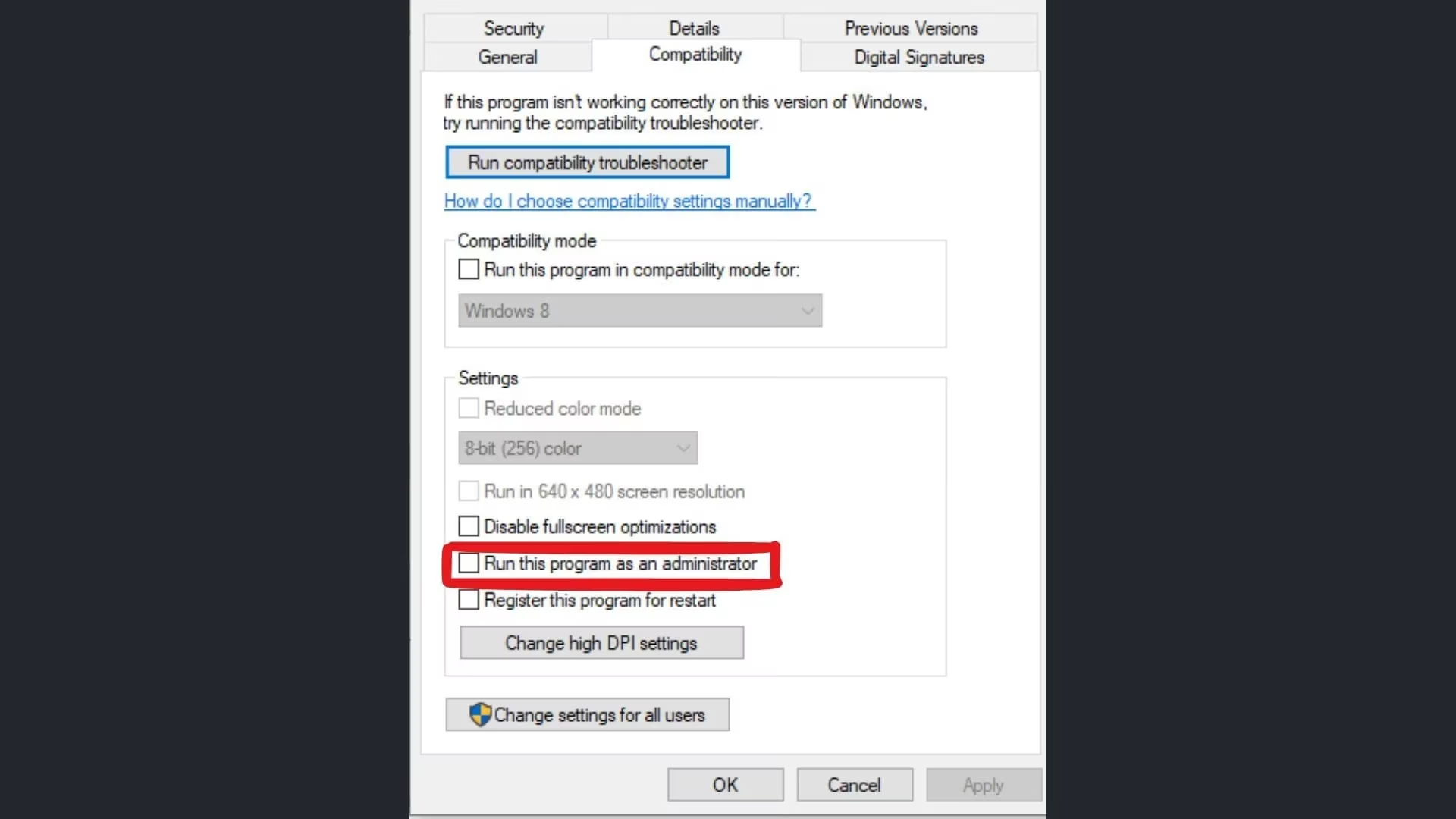
Here is a step-by-step guide to implement this fix:
-
Launch your Steam client.
-
Navigate to your Library and locate Delta Force.
-
Right-click on Delta Force and select Manage.
-
From the menu, choose Browse local files. This opens the game's installation folder.
-
In the folder, find the main executable file, typically named
DeltaForceClient.exe. -
Right-click on this
.exefile and select Properties. -
Click on the Compatibility tab.
-
In the Settings section, check the box that says "Run this program as an administrator".
-
Click Apply and then OK to save the changes.
After completing these steps, try launching Delta Force again. Running the game with administrator privileges should allow the SAILSDK process to initialize without interference from UAC. For convenience, you can also set the Steam client itself to run as administrator, though applying the setting directly to the game executable is often more targeted and effective.
🔍 Secondary Fix: Verifying Game File Integrity
If running as an administrator does not resolve the issue, the next step is to ensure all game files are present and uncorrupted. Steam provides a built-in tool for this very purpose. Corrupted files can occur due to abrupt system shutdowns, disk errors, or interruptions during the download/update process.
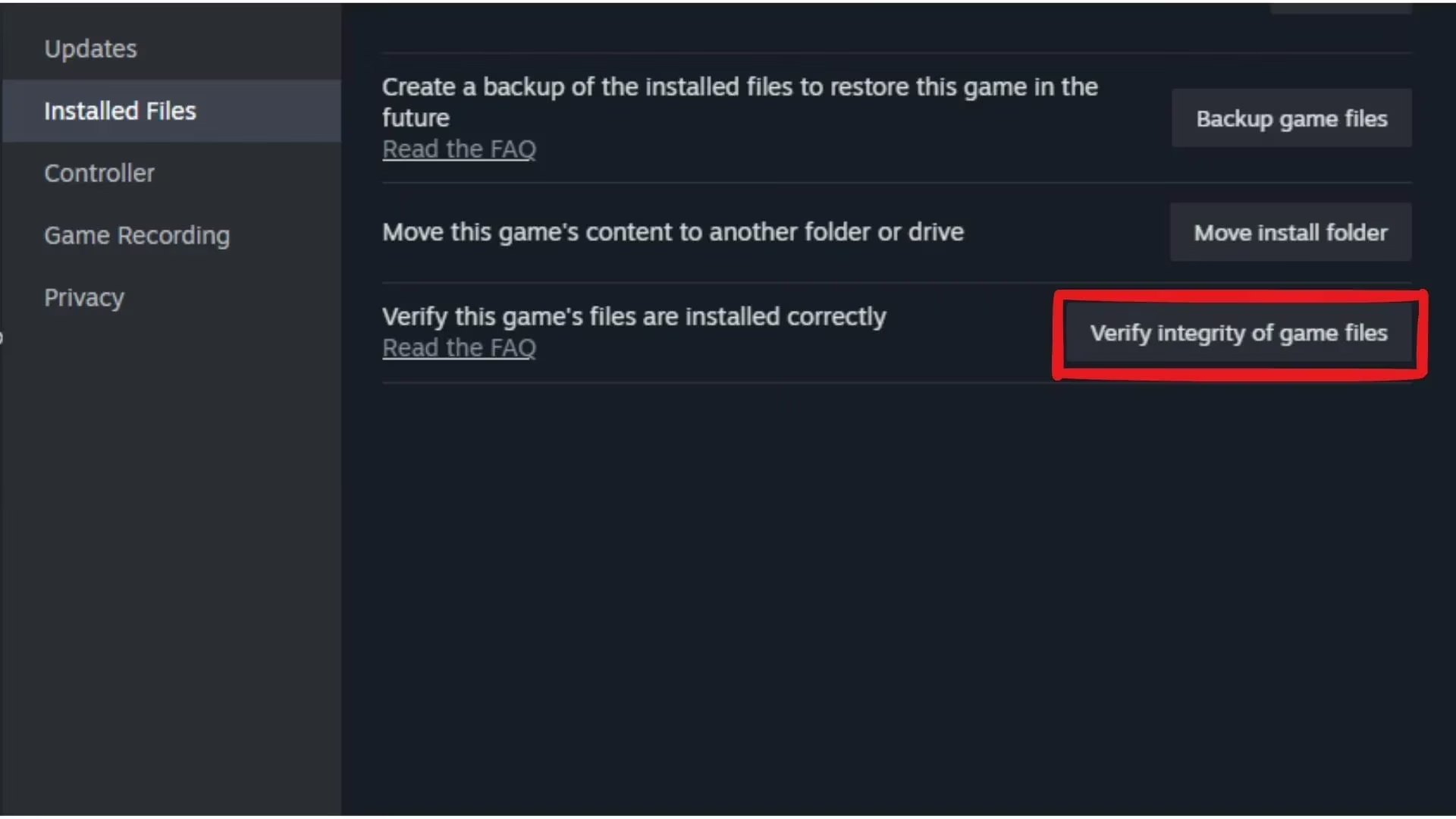
Follow this process to verify your Delta Force files:
-
Open Steam and go to your Library.
-
Right-click on Delta Force in your game list.
-
Select Properties from the context menu.
-
In the new window, navigate to the Installed Files tab.
-
Click on the button labeled "Verify integrity of game files..."
-
Steam will now scan all your Delta Force files. This process may take several minutes. Wait for it to complete.
Once finished, Steam will display a message. The tool will automatically download and replace any files it finds to be missing or corrupted. If the verification process successfully replaces files, attempt to launch the game again. In the rare event that this verification fails to fix the issue or reports numerous problems, a complete reinstallation of Delta Force may be necessary as a last resort.
📋 Summary and Final Considerations
To summarize, the Delta Force "SAILSDK INIT failed" error in 2026 is primarily a permissions conflict. The solutions, in recommended order of attempt, are:
| Step | Action | Expected Outcome |
|---|---|---|
| 1 | Run DeltaForceClient.exe as Administrator |
Bypasses UAC block on SAILSDK initialization. |
| 2 | Verify Game Files via Steam | Repairs missing or corrupted game data. |
| 3 | Reinstall Delta Force | Provides a completely fresh set of game files. |
It is important to remember that these are user-end workarounds. The game's developers have consistently released patches and seasonal updates that often include behind-the-scenes fixes for such persistent technical issues. If neither of the primary fixes works, checking the official community forums or announcements for any known server-side issues or upcoming patches is advisable. The stability of Delta Force has significantly improved since its debut, but understanding how to navigate these occasional technical hurdles ensures players can quickly return to the large-scale battles that define the experience.
Since its launch in late 2024, Delta Force has established itself as a premier large-scale warfare title. However, a persistent technical hurdle for a subset of players has been the "SAILSDK INIT failed" error, which causes an immediate crash upon launching the game. This issue, while not universally experienced, has remained a point of frustration for those affected, even into 2026. The error typically manifests regardless of whether the game is launched via a desktop shortcut or directly through the Steam client, halting the experience before it can begin. While the game's initial release was relatively smooth, the complexity of modern PC environments means that certain compatibility and permission issues can surface over time.
Understanding the core of the problem is the first step toward a solution. The "SAILSDK INIT failed" error is widely understood to be related to system permissions. Specifically, the Windows User Account Control (UAC) feature may be blocking a component or process that Delta Force requires to initialize correctly. The system might flag this process as unauthorized, preventing the game from starting. Alternative causes, though less common now given the game's maturity, can include missing or corrupted game files from an incomplete installation or update. It's also worth noting that while most instances are client-side, players should always be aware that server-side maintenance or issues could theoretically cause similar launch failures, though these are typically resolved quickly by the developers.
🛠️ Primary Fix: Running as Administrator
The most consistently effective workaround for the SAILSDK error involves granting Delta Force elevated permissions by running it as an administrator. This action allows the game to bypass the restrictive UAC prompts that are likely causing the initialization failure.
Here is a step-by-step guide to implement this fix:
-
Launch your Steam client.
-
Navigate to your Library and locate Delta Force.
-
Right-click on Delta Force and select Manage.
-
From the menu, choose Browse local files. This opens the game's installation folder.
-
In the folder, find the main executable file, typically named
DeltaForceClient.exe. -
Right-click on this
.exefile and select Properties. -
Click on the Compatibility tab.
-
In the Settings section, check the box that says "Run this program as an administrator".
-
Click Apply and then OK to save the changes.
After completing these steps, try launching Delta Force again. Running the game with administrator privileges should allow the SAILSDK process to initialize without interference from UAC. For convenience, you can also set the Steam client itself to run as administrator, though applying the setting directly to the game executable is often more targeted and effective.
🔍 Secondary Fix: Verifying Game File Integrity
If running as an administrator does not resolve the issue, the next step is to ensure all game files are present and uncorrupted. Steam provides a built-in tool for this very purpose. Corrupted files can occur due to abrupt system shutdowns, disk errors, or interruptions during the download/update process.
Follow this process to verify your Delta Force files:
-
Open Steam and go to your Library.
-
Right-click on Delta Force in your game list.
-
Select Properties from the context menu.
-
In the new window, navigate to the Installed Files tab.
-
Click on the button labeled "Verify integrity of game files..."
-
Steam will now scan all your Delta Force files. This process may take several minutes. Wait for it to complete.
Once finished, Steam will display a message. The tool will automatically download and replace any files it finds to be missing or corrupted. If the verification process successfully replaces files, attempt to launch the game again. In the rare event that this verification fails to fix the issue or reports numerous problems, a complete reinstallation of Delta Force may be necessary as a last resort.
📋 Summary and Final Considerations
To summarize, the Delta Force "SAILSDK INIT failed" error in 2026 is primarily a permissions conflict. The solutions, in recommended order of attempt, are:
| Step | Action | Expected Outcome |
|---|---|---|
| 1 | Run DeltaForceClient.exe as Administrator |
Bypasses UAC block on SAILSDK initialization. |
| 2 | Verify Game Files via Steam | Repairs missing or corrupted game data. |
| 3 | Reinstall Delta Force | Provides a completely fresh set of game files. |
It is important to remember that these are user-end workarounds. The game's developers have consistently released patches and seasonal updates that often include behind-the-scenes fixes for such persistent technical issues. If neither of the primary fixes works, checking the official community forums or announcements for any known server-side issues or upcoming patches is advisable. The stability of Delta Force has significantly improved since its debut, but understanding how to navigate these occasional technical hurdles ensures players can quickly return to the large-scale battles that define the experience.